JavaScript works with different types of data, including strings, numbers, booleans, objects, undefined, null, BigInt, and Symbol. When a program works with values of different types, JavaScript sometimes needs to convert one type into another.
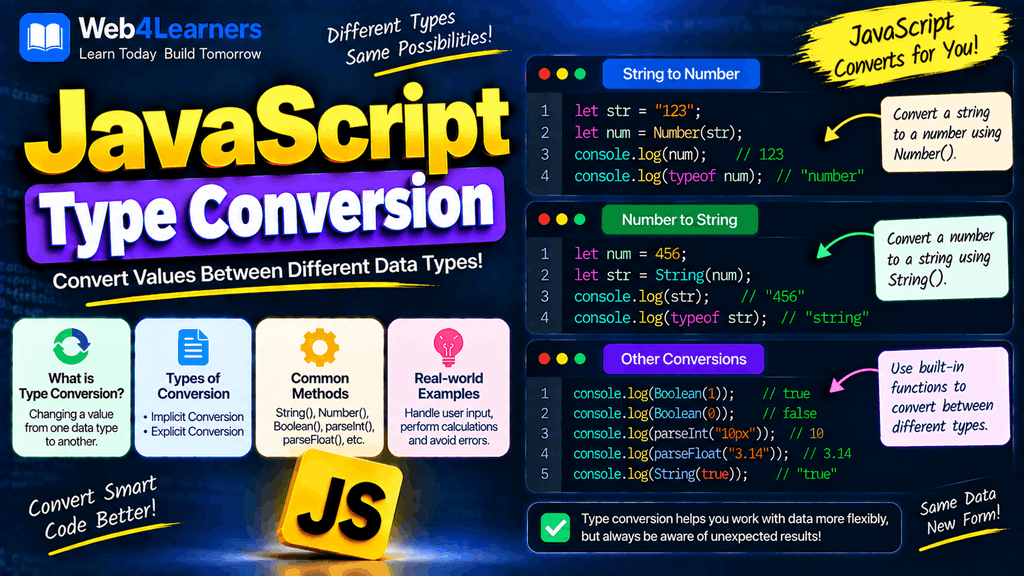
For example, a value received from an HTML form is commonly represented as a string, even when the user enters a number. If you want to perform mathematical calculations with that value, you may need to convert it into a number.
const age = "25";

console.log(typeof age);
Output:
string
You can convert it into a number:
const age = Number("25");

console.log(age);
console.log(typeof age);
Output:
25
number
This process is called type conversion.
JavaScript can perform conversions in two main ways. You can explicitly convert a value yourself, or JavaScript can automatically convert values when an operation requires another type.
In this tutorial, you will learn about string conversion, number conversion, boolean conversion, implicit and explicit type conversion, Number(), String(), Boolean(), parseInt(), parseFloat(), NaN, and Infinity.
What Is Type Conversion in JavaScript?
Type conversion is the process of changing a value from one data type to another.
For example, converting a number into a string:
const number = 100;

const text = String(number);

console.log(text);
console.log(typeof text);
Output:
100
string
Here, the original number 100 has been converted into the string "100".
Type conversion is common when working with:
- Form inputs
- User-entered data
- APIs
- Calculations
- URLs
- Local storage
- Databases
- JSON data
- Conditional expressions
- String formatting
Image placement suggestion: Add a diagram here showing String → Number → Boolean with arrows representing conversion between JavaScript data types.
Type Conversion vs Type Coercion
The terms type conversion and type coercion are often used together, but there is an important distinction.
Type conversion generally refers to conversion that you intentionally perform.
const value = "100";

const number = Number(value);
You explicitly asked JavaScript to convert the string into a number.
Type coercion usually refers to JavaScript automatically converting a value during an operation.
const result = "100" - 20;

console.log(result);
Output:
80
JavaScript automatically converts "100" into a number so that subtraction can be performed.
A useful way to remember the difference is:
| Concept | Meaning | Example |
|---|---|---|
| Type conversion | You intentionally convert a value | Number("100") |
| Type coercion | JavaScript automatically converts a value | "100" - 20 |
String Conversion
String conversion means converting a value into a string.
The most common explicit method is:
String()
For example:
const number = 100;

const text = String(number);

console.log(text);
console.log(typeof text);
Output:
100
string
The value looks the same when printed, but its type has changed.
Converting Numbers to Strings
You can convert an integer into a string:
const number = 100;

console.log(String(number));
Output:
100
You can verify the type:
const number = 100;
const text = String(number);

console.log(typeof text);
Output:
string
Decimal numbers can also be converted:
const price = 99.99;

console.log(String(price));
Output:
99.99
Converting Booleans to Strings
const value = true;

const text = String(value);

console.log(text);
console.log(typeof text);
Output:
true
string
The boolean true becomes the string "true".
The same applies to false:
console.log(String(false));
Output:
false
Converting null to a String
const value = null;

console.log(String(value));
Output:
null
The result is the string "null".
console.log(typeof String(null));
Output:
string
Converting undefined to a String
const value = undefined;

console.log(String(value));
Output:
undefined
The resulting value is the string "undefined".
Converting Arrays to Strings
Arrays can also be converted into strings.
const fruits = ["Apple", "Banana", "Orange"];

console.log(String(fruits));
Output:
Apple,Banana,Orange
For arrays, this conversion is closely related to the array’s string representation.
If you need a particular format, methods such as join() are often clearer:
console.log(fruits.join(", "));
Output:
Apple, Banana, Orange
Converting Objects to Strings
An ordinary object converted using String() generally produces:
[object Object]
For example:
const user = {
    name: "John"
};

console.log(String(user));
Output:
[object Object]
If you need a useful text representation of an object, JSON.stringify() is often more appropriate:
console.log(JSON.stringify(user));
Output:
{"name":"John"}
Number Conversion
Number conversion means converting a value into a JavaScript number.
The most common explicit method is:
Number()
For example:
const value = "100";

const number = Number(value);

console.log(number);
console.log(typeof number);
Output:
100
number
Converting Numeric Strings to Numbers
A string containing a valid number can be converted using Number().
console.log(Number("50"));
Output:
50
Decimal strings also work:
console.log(Number("99.99"));
Output:
99.99
Negative numbers work as well:
console.log(Number("-25"));
Output:
-25
Converting an Empty String to a Number
This is an important behavior:
console.log(Number(""));
Output:
0
An empty string converts to zero with Number().
This behavior can matter when processing form values, so do not assume that an empty string becomes NaN.
Converting Whitespace Strings to Numbers
Strings containing only whitespace also convert to zero with Number().
console.log(Number(" "));
Output:
0
This is another reason to validate user input carefully before converting it.
Converting Boolean Values to Numbers
Boolean values can be converted into numbers.
console.log(Number(true));
console.log(Number(false));
Output:
1
0
JavaScript follows this rule:
| Boolean | Number |
|---|---|
true | 1 |
false | 0 |
Converting null to a Number
console.log(Number(null));
Output:
0
This is different from converting undefined.
Converting undefined to a Number
console.log(Number(undefined));
Output:
NaN
So:
Number(null)       → 0
Number(undefined)  → NaN
This difference is important when handling missing values.
Invalid Strings and Number Conversion
If a string cannot be converted into a valid number, Number() returns NaN.
console.log(Number("Hello"));
Output:
NaN
Another example:
console.log(Number("100px"));
Output:
NaN
This happens because the entire string is not a valid numeric representation for Number().
Boolean Conversion
Boolean conversion converts a value into either true or false.
The explicit method is:
Boolean()
For example:
console.log(Boolean(1));
Output:
true
And:
console.log(Boolean(0));
Output:
false
Truthy and Falsy Values
JavaScript divides values into two broad categories when converting them to booleans:
- Truthy values
- Falsy values
A truthy value becomes true.
A falsy value becomes false.
Common falsy values include:
false
0
-0
0n
""
null
undefined
NaN
Almost every other value is truthy, including empty arrays and empty objects.
Boolean Conversion Table
| Value | Boolean(value) |
|---|---|
true | true |
false | false |
1 | true |
0 | false |
-1 | true |
"" | false |
"Hello" | true |
"0" | true |
null | false |
undefined | false |
NaN | false |
[] | true |
{} | true |
The last two examples are especially important.
An empty array is truthy:
console.log(Boolean([]));
Output:
true
An empty object is also truthy:
console.log(Boolean({}));
Output:
true
Converting Strings to Booleans
A non-empty string is truthy.
console.log(Boolean("Hello"));
Output:
true
Even the string "false" is truthy:
console.log(Boolean("false"));
Output:
true
This can surprise beginners because the string contains the word false, but it is still a non-empty string.
An empty string is falsy:
console.log(Boolean(""));
Output:
false
Converting Numbers to Booleans
Zero is falsy:
console.log(Boolean(0));
Output:
false
Non-zero numbers are truthy:
console.log(Boolean(10));
console.log(Boolean(-10));
Output:
true
true
Explicit Type Conversion
Explicit type conversion occurs when you intentionally tell JavaScript to convert a value.
Common functions include:
Number()
String()
Boolean()
For example:
const age = "25";

const numberAge = Number(age);

console.log(numberAge);
You explicitly requested the conversion.
Implicit Type Conversion
Implicit type conversion happens when JavaScript automatically converts values during an operation.
For example:
const result = "10" - 5;

console.log(result);
Output:
5
JavaScript automatically converts "10" into the number 10.
You did not explicitly call Number().
Implicit Conversion with the + Operator
The + operator behaves differently because it is used for both addition and string concatenation.
Consider:
const result = "10" + 5;

console.log(result);
Output:
105
JavaScript treats the operation as string concatenation.
The result is a string:
console.log(typeof result);
Output:
string
This is why the following two operations produce different results:
"10" + 5
and:
"10" - 5
The first produces:
105
while the second produces:
5
Implicit Conversion with Other Arithmetic Operators
Subtraction, multiplication, and division generally convert suitable string operands into numbers.
console.log("20" - 5);
console.log("20" * 2);
console.log("20" / 2);
Output:
15
40
10
JavaScript automatically converts the string "20" into a number for these operations.
Explicit Conversion with Number()
Instead of relying on implicit conversion, you can make the conversion clear:
const value = "20";

const number = Number(value);

console.log(number + 5);
Output:
25
This can make your code easier to understand because the conversion is visible.
The String() Function
The String() function converts a value into a string.
const number = 100;

const text = String(number);

console.log(text);
console.log(typeof text);
Output:
100
string
Some common conversions include:
String(100);          // "100"
String(true);         // "true"
String(false);        // "false"
String(null);         // "null"
String(undefined);    // "undefined"
The Number() Function
The Number() function converts a value into a number when possible.
console.log(Number("100"));
console.log(Number("10.5"));
console.log(Number(true));
console.log(Number(false));
Output:
100
10.5
1
0
When conversion is not possible:
console.log(Number("Hello"));
Output:
NaN
The Boolean() Function
The Boolean() function converts a value into true or false.
console.log(Boolean("Hello"));
console.log(Boolean(""));
console.log(Boolean(100));
console.log(Boolean(0));
Output:
true
false
true
false
It is useful when you need to explicitly determine whether a value is truthy or falsy.
The parseInt() Function
parseInt() converts a string into an integer by reading the string from the beginning and stopping when it can no longer parse the number.
console.log(parseInt("100"));
Output:
100
Decimal input is truncated:
console.log(parseInt("100.99"));
Output:
100
This makes parseInt() different from Number().
console.log(Number("100.99"));
console.log(parseInt("100.99"));
Output:
100.99
100
parseInt() with Numeric Strings Containing Text
parseInt() can extract an integer from the beginning of a string when the initial characters form a valid number.
console.log(parseInt("100px"));
Output:
100
Compare this with:
console.log(Number("100px"));
Output:
NaN
This difference is important.
Number() expects the entire string to represent a valid number, while parseInt() parses an integer from the beginning of the string.
parseInt() and Decimal Values
parseInt() returns an integer.
console.log(parseInt("25.75"));
Output:
25
It does not round the value to the nearest integer. It removes the fractional part during parsing.
Specifying the Radix with parseInt()
When using parseInt(), it is good practice to specify the radix when you know the expected number system.
For normal decimal numbers:
console.log(parseInt("100", 10));
Output:
100
The second argument 10 tells JavaScript to interpret the number using the decimal system.
You may encounter other radices as well:
parseInt("1010", 2);
Output:
10
Here, "1010" is interpreted as a binary number.
The parseFloat() Function
parseFloat() parses a string and returns a floating-point number.
For example:
console.log(parseFloat("10.50"));
Output:
10.5
Unlike parseInt(), it preserves the decimal portion.
console.log(parseInt("10.50"));
console.log(parseFloat("10.50"));
Output:
10
10.5
parseFloat() with Text
Like parseInt(), parseFloat() can parse a valid number at the beginning of a string.
console.log(parseFloat("99.99px"));
Output:
99.99
But:
console.log(Number("99.99px"));
returns:
NaN
Number() vs parseInt() vs parseFloat()
These functions are similar but serve different purposes.
| Function | Example | Result |
|---|---|---|
Number("100") | "100" | 100 |
Number("10.5") | "10.5" | 10.5 |
parseInt("100.5", 10) | "100.5" | 100 |
parseFloat("100.5") | "100.5" | 100.5 |
Number("100px") | "100px" | NaN |
parseInt("100px", 10) | "100px" | 100 |
parseFloat("100.5px") | "100.5px" | 100.5 |
A simple rule is:
- Use
Number()when you want the whole value to represent a valid number. - Use
parseInt()when you specifically need an integer parsed from the beginning of a string. - Use
parseFloat()when you specifically need a floating-point number parsed from the beginning of a string.
What Is NaN in JavaScript?
NaN stands for Not-a-Number.
It represents an invalid or undefined numeric result.
For example:
console.log(Number("Hello"));
Output:
NaN
Another example:
console.log(0 / 0);
Output:
NaN
Although its name contains “Not-a-Number”, NaN belongs to JavaScript’s number type.
console.log(typeof NaN);
Output:
number
Checking for NaN
You should not normally check for NaN using:
value === NaN
This does not work as expected because NaN is not equal to itself.
console.log(NaN === NaN);
Output:
false
Instead, use:
Number.isNaN(value)
For example:
const value = Number("Hello");

console.log(Number.isNaN(value));
Output:
true
Global isNaN() vs Number.isNaN()
JavaScript also has a global isNaN() function.
console.log(isNaN("Hello"));
Output:
true
However, the global isNaN() performs coercion before testing the result.
For example:
console.log(isNaN("100"));
Output:
false
"100" is converted to a number first.
Number.isNaN() does not perform this coercion.
console.log(Number.isNaN("Hello"));
Output:
false
because the string "Hello" itself is not the NaN value.
For precise NaN checking, Number.isNaN() is generally clearer.
What Is Infinity in JavaScript?
Infinity represents a numeric value greater than every finite JavaScript number.
You can produce it by dividing a positive number by zero:
console.log(10 / 0);
Output:
Infinity
Negative division by zero produces:
console.log(-10 / 0);
Output:
-Infinity
Both values have the number type.
console.log(typeof Infinity);
console.log(typeof -Infinity);
Output:
number
number
Checking for Infinity
You can use:
Number.isFinite()
to determine whether a value is a finite number.
console.log(Number.isFinite(100));
Output:
true
But:
console.log(Number.isFinite(Infinity));
Output:
false
The same applies to -Infinity.
console.log(Number.isFinite(-Infinity));
Output:
false
Implicit Conversion in Comparisons
JavaScript can also perform type coercion when using loose equality.
For example:
console.log("10" == 10);
Output:
true
JavaScript converts one of the values before comparing them.
However:
console.log("10" === 10);
Output:
false
Strict equality does not perform this type conversion.
For predictable code, prefer strict equality:
===
and strict inequality:
!==
when you want both the value and type to match.
Implicit Conversion with Boolean Conditions
JavaScript automatically converts values to booleans when they are used in conditions.
const username = "John";

if (username) {
    console.log("Username exists.");
}
Output:
Username exists.
Because a non-empty string is truthy.
With an empty string:
const username = "";

if (username) {
    console.log("Username exists.");
} else {
    console.log("Username is empty.");
}
Output:
Username is empty.
Double NOT for Boolean Conversion
You may sometimes see:
!!
used to convert a value into a boolean.
For example:
console.log(!!"Hello");
Output:
true
And:
console.log(!!0);
Output:
false
The first ! converts the value to a boolean and reverses it. The second ! reverses it again.
Although Boolean(value) is often easier for beginners to read, !!value is common in JavaScript code.
Type Conversion with User Input
Type conversion is especially important when working with HTML forms.
Suppose you have an input:
<input id="age" type="number">
You might retrieve its value using:
const age = document.getElementById("age").value;

console.log(typeof age);
The value is still typically a string.
If you want a number:
const age = Number(document.getElementById("age").value);

console.log(typeof age);
Now the value is a number if the input represents a valid numeric value.
This is one of the most practical reasons to understand type conversion.
Practical Example: Adding Two User Values
Suppose two values come from input fields:
const first = "10";
const second = "20";

console.log(first + second);
Output:
1020
This happens because both values are strings.
Convert them first:
const first = Number("10");
const second = Number("20");

console.log(first + second);
Output:
30
This is a common beginner mistake when working with form data.
Practical Example: Converting a Price
const price = "1499.99";

const numericPrice = Number(price);

console.log(numericPrice);
console.log(typeof numericPrice);
Output:
1499.99
number
You can now perform calculations:
const total = numericPrice + 500;

console.log(total);
Output:
1999.99
Practical Example: Checking a Numeric Input
function calculateTotal(value) {
    const number = Number(value);

    if (!Number.isFinite(number)) {
        console.log("Please enter a valid number.");
        return;
    }

    console.log(number * 2);
}

calculateTotal("50");
Output:
100
If the input is invalid:
calculateTotal("Hello");
Output:
Please enter a valid number.
This combines type conversion with number validation.
Practical Example: Parsing CSS Values
Suppose you receive a value such as:
250px
You can extract the numeric portion using parseInt():
const width = "250px";

const value = parseInt(width, 10);

console.log(value);
Output:
250
For a decimal value:
const width = "250.75px";

const value = parseFloat(width);

console.log(value);
Output:
250.75
This is one situation where parsing functions can be useful.
Practical Example: Converting a Boolean
Suppose a value needs to be treated as a boolean:
const value = "Hello";

const result = Boolean(value);

console.log(result);
Output:
true
For an empty value:
const value = "";

console.log(Boolean(value));
Output:
false
Common Type Conversion Mistakes
Mistaking "10" for 10
These values look similar but have different types.
const a = "10";
const b = 10;

console.log(typeof a);
console.log(typeof b);
Output:
string
number
Expecting + to Always Perform Addition
This produces string concatenation:
console.log("10" + 5);
Output:
105
Convert the string first:
console.log(Number("10") + 5);
Output:
15
Using parseInt() When Decimal Precision Is Required
parseInt("19.99", 10);
returns:
19
If you need the decimal value, use:
parseFloat("19.99");
or, when the entire string should be a valid numeric representation:
Number("19.99");
Checking NaN with ===
This does not work:
value === NaN
Use:
Number.isNaN(value)
instead.
Assuming "false" Is Falsy
This is truthy:
Boolean("false");
because "false" is a non-empty string.
Output:
true
Assuming Empty Arrays Are Falsy
This is also truthy:
Boolean([]);
Output:
true
The same applies to empty objects:
Boolean({});
Output:
true
Best Practices for Type Conversion
Use explicit conversion when it makes your intention clearer.
const age = Number(input);
Prefer strict equality when you do not want automatic coercion:
if (value === 10) {
    // ...
}
Use Number() when the entire string should represent a valid number.
Use parseInt() when you specifically need to parse an integer from the beginning of a string.
Use parseFloat() when you need to parse a decimal number from the beginning of a string.
Use Number.isNaN() when checking specifically for the NaN value.
Use Number.isFinite() when you need to ensure that a value is a finite number.
Be particularly careful with form inputs because their values are commonly represented as strings.
JavaScript Type Conversion Cheat Sheet
| Goal | Recommended Code | Example Result |
|---|---|---|
| Convert to string | String(value) | String(100) → "100" |
| Convert to number | Number(value) | Number("100") → 100 |
| Convert to boolean | Boolean(value) | Boolean(1) → true |
| Parse integer | parseInt(value, 10) | parseInt("10.5", 10) → 10 |
| Parse decimal | parseFloat(value) | parseFloat("10.5") → 10.5 |
| Check NaN | Number.isNaN(value) | true / false |
| Check finite number | Number.isFinite(value) | true / false |
| Get type | typeof value | "string" |
| Boolean shorthand | !!value | !!1 → true |
Type Conversion Quick Reference
String Conversion
String(100);        // "100"
String(true);       // "true"
String(null);       // "null"
String(undefined);  // "undefined"
Number Conversion
Number("100");      // 100
Number("10.5");     // 10.5
Number(true);       // 1
Number(false);      // 0
Number(null);       // 0
Number("Hello");    // NaN
Boolean Conversion
Boolean(1);         // true
Boolean(0);         // false
Boolean("Hello");   // true
Boolean("");        // false
Boolean(null);      // false
Boolean(undefined); // false
Parsing
parseInt("100.50", 10);  // 100
parseFloat("100.50");    // 100.5
Special Numeric Values
Number("Hello");    // NaN
0 / 0;              // NaN
10 / 0;             // Infinity
-10 / 0;            // -Infinity
Frequently Asked Questions About JavaScript Type Conversion
What is type conversion in JavaScript?
Type conversion is the process of changing a value from one data type to another, such as converting a string into a number.
Number("100");
What is implicit type conversion?
Implicit type conversion occurs when JavaScript automatically converts a value during an operation.
console.log("10" - 5);
JavaScript converts "10" into a number automatically.
What is explicit type conversion?
Explicit type conversion occurs when you intentionally convert a value using a function or another conversion technique.
Number("10");
String(10);
Boolean(10);
What is the difference between Number() and parseInt()?
Number() attempts to convert the entire value into a number, while parseInt() parses an integer from the beginning of a string.
Number("10.5");          // 10.5
parseInt("10.5", 10);    // 10
What is the difference between parseInt() and parseFloat()?
parseInt() returns an integer, while parseFloat() can return a decimal number.
parseInt("25.75", 10);  // 25
parseFloat("25.75");    // 25.75
What does Number("Hello") return?
It returns:
NaN
because "Hello" cannot be converted into a valid number.
What does Number("") return?
It returns:
0
An empty string is converted to zero by Number().
What does Boolean("false") return?
It returns:
true
The string is non-empty, so it is truthy. The fact that it contains the word "false" does not make it the boolean value false.
What is NaN?
NaN means Not-a-Number and represents an invalid numeric result.
const result = Number("Hello");

console.log(result);
Output:
NaN
How do you check for NaN?
Use:
Number.isNaN(value);
rather than:
value === NaN;
What is Infinity in JavaScript?
Infinity represents an infinite numeric value.
console.log(10 / 0);
Output:
Infinity
How do you check whether a number is finite?
Use:
Number.isFinite(value);
For example:
console.log(Number.isFinite(100));
console.log(Number.isFinite(Infinity));
Output:
true
false
Why does "10" + 5 produce "105"?
The + operator can perform string concatenation. Because one operand is a string, JavaScript converts the number to a string and joins the two values.
"10" + 5
produces:
"105"
If you want addition, convert the string first:
Number("10") + 5
which produces:
15