
An HTML editor is a software application used to write, edit, and manage HTML code. HTML editors make it easier to create web pages by providing features such as syntax highlighting, code suggestions, auto-completion, error detection, and formatting.
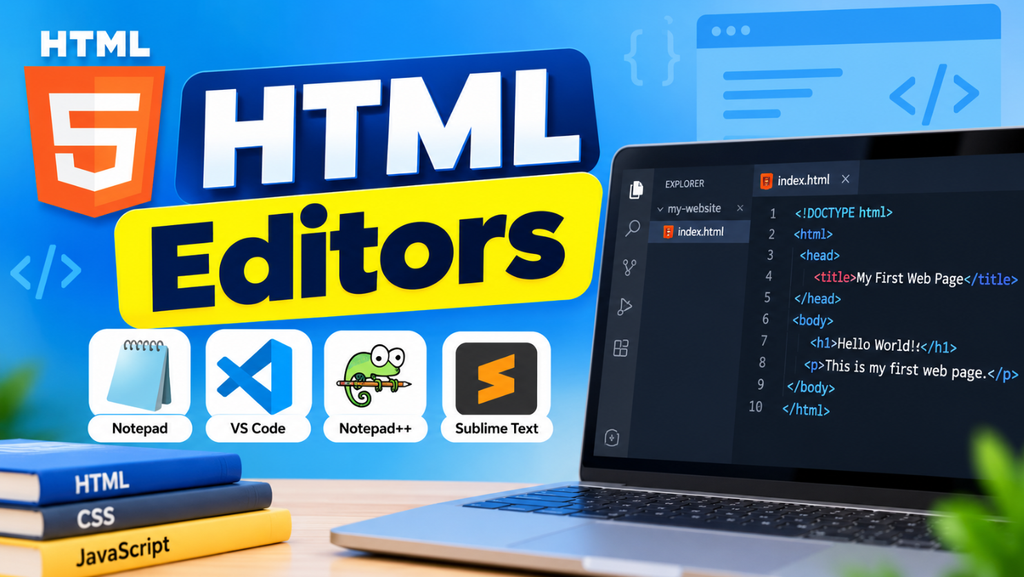
You can create an HTML page using a simple text editor such as Notepad, or you can use a professional code editor such as Visual Studio Code.
For beginners, starting with a simple editor can help you understand how HTML works. As you become more comfortable with HTML, you can move to advanced editors that provide additional development features.
Why Do We Need an HTML Editor?
HTML files are simply text files containing HTML code. You technically do not need a special application to write HTML.
For example, you can write the following HTML code in a basic text editor:
<!DOCTYPE html>
<html>
<head>
    <title>My First Web Page</title>
</head>
<body>

    <h1>Hello World!</h1>
    <p>This is my first web page.</p>

</body>
</html>
You can save this file with the .html extension and open it in a web browser.
However, an HTML editor makes writing and managing code much easier.
Types of HTML Editors
HTML editors can generally be divided into two main types:
| Type | Description |
|---|---|
| Text Editor | A simple editor where you manually write HTML code |
| Code Editor | An advanced editor with features designed for programming and web development |
Both types can be used to create HTML websites.
Using Notepad as an HTML Editor
Notepad is a basic text editor included with Windows. It does not provide advanced programming features, but it is useful for learning the fundamentals of HTML.
You can write HTML code in Notepad and save the file with the .html extension.
For example:
<!DOCTYPE html>
<html>
<body>

<h1>My First HTML Page</h1>
<p>Hello World!</p>

</body>
</html>
Save the file as:
index.html
You can then double-click the file to open it in your browser.
How to Create an HTML File in Notepad
Creating an HTML file using Notepad is simple.
Open Notepad on your computer.
Type or paste your HTML code into the editor.
For example:
<!DOCTYPE html>
<html>
<head>
    <title>HTML Example</title>
</head>
<body>

    <h1>Welcome to HTML</h1>
    <p>This page was created using Notepad.</p>

</body>
</html>
Click File → Save As.
- Enter the file name: index.html
- Change Save as type to: All Files
- Then click Save.
Open the saved file in a web browser to view the result.
Using Visual Studio Code for HTML
Visual Studio Code is a popular code editor used by web developers.
It supports HTML, CSS, JavaScript, and many other programming languages.
Visual Studio Code provides several features that make HTML development easier, including:
- Syntax highlighting
- Code completion
- Automatic indentation
- Error detection
- Code formatting
- Extensions
- Multiple file management
- Search and replace
- Integrated terminal
It is especially useful when you start building websites containing multiple HTML, CSS, and JavaScript files.
Writing HTML in Visual Studio Code
After installing Visual Studio Code, create a folder for your website.
For example: my-website
Open the folder in Visual Studio Code.
Create a new file named: index.html
Add the following code:
<!DOCTYPE html>
<html>
<head>
    <title>My Website</title>
</head>
<body>

    <h1>Welcome to My Website</h1>
    <p>This is my first website.</p>

</body>
</html>
Save the file and open it in your browser.
HTML Editor Features
Modern HTML editors provide many useful features.
Syntax Highlighting
Syntax highlighting displays different parts of your HTML code in different colors. This makes the code easier to read and understand.
For example, HTML tags, attributes, values, and text can be displayed differently.
Auto Completion
Many code editors automatically suggest HTML tags and attributes while you type.
For example, when you start typing: <h>
the editor may suggest HTML heading elements.
This can save time and reduce typing mistakes.
Automatic Indentation
HTML editors can automatically organize your code using proper indentation.
Instead of writing:
<html>
<head>
<title>Page</title>
</head>
<body>
<h1>Hello</h1>
</body>
</html>
the editor can format it as:
<html>
    <head>
        <title>Page</title>
    </head>
    <body>
        <h1>Hello</h1>
    </body>
</html>
This makes larger HTML documents much easier to understand.
Error Detection
- Some code editors can identify potential problems in your HTML code.
- For example, they may highlight missing closing tags, invalid syntax, or other issues.
- Error detection is particularly useful when working with larger projects.
Code Formatting
- Code formatting automatically organizes your HTML code according to formatting rules.
- This helps maintain a consistent structure throughout your website.
Extensions
Advanced editors such as Visual Studio Code support extensions.
Extensions can add additional features such as:
- HTML validation
- Live preview
- Code formatting
- CSS tools
- JavaScript tools
- Git integration
- Framework support
HTML Editor vs Simple Text Editor
Both simple text editors and advanced HTML editors can create HTML files.
| Feature | Notepad | Visual Studio Code |
|---|---|---|
| Write HTML | Yes | Yes |
| Save HTML files | Yes | Yes |
| Syntax Highlighting | No | Yes |
| Code Completion | No | Yes |
| Extensions | No | Yes |
| Integrated Terminal | No | Yes |
| Advanced Development | Limited | Yes |
| Beginner Friendly | Yes | Yes |
A simple editor is enough to learn the basics of HTML, while an advanced code editor becomes more useful as your projects grow.
Other HTML Editors
There are many editors available for HTML development.
Some commonly used options include:
- Visual Studio Code
- Sublime Text
- Notepad++
- WebStorm
- Brackets
- Vim
- Atom alternatives and modern code editors
Each editor provides different features and workflows.
HTML Editors and Web Browsers
An HTML editor is used to write HTML code, while a web browser is used to display the result.
For example, you can create: index.html
- using an HTML editor.
- You can then open the file using a browser such as Chrome, Edge, Firefox, or Safari.
- The browser reads the HTML code and renders it as a web page.
The basic workflow is:
HTML Editor
↓
Write HTML Code
↓
Save .html File
↓
Open in Browser
↓
View Web Page
Can You Write HTML Without an HTML Editor?
Yes.
HTML is a text-based markup language, so you can create HTML files using almost any text editor.
However, an HTML or code editor provides additional features that make development faster and easier.
For beginners, Notepad is enough to understand how HTML files work. For regular website development, a dedicated code editor is generally more convenient.
Which HTML Editor Should Beginners Use?
Beginners can start with either Notepad or Visual Studio Code.
- Notepad is useful if your goal is to understand the basic relationship between HTML code and the web page displayed by the browser.
- Visual Studio Code is useful if you want to continue learning web development because it supports HTML along with CSS and JavaScript.
If you plan to build websites regularly, learning how to use a modern code editor can save considerable time.
Tips for Using an HTML Editor
- Keep your HTML code properly organized.
- Use indentation to make nested elements easier to understand.
Use meaningful file names such as:
index.html
about.html
contact.html
Save your files frequently.
- Use lowercase HTML tags and attributes consistently.
- Check your HTML pages in a browser after making changes.
- As your projects become larger, organize your HTML, CSS, JavaScript, and image files into separate folders.
HTML Editor Example
Here is a simple HTML document you can create in any HTML editor:
<!DOCTYPE html>
<html lang="en">
<head>
    <meta charset="UTF-8">
    <meta name="viewport" content="width=device-width, initial-scale=1.0">
    <title>My First Website</title>
</head>
<body>

    <h1>Welcome to My Website</h1>

    <p>
        This is my first web page created using an HTML editor.
    </p>

</body>
</html>
Save the file as:
index.html
Then open it in your browser.
You should see the heading and paragraph displayed as a web page.
Frequently Asked Questions
What is an HTML editor?
An HTML editor is a software application used to create and edit HTML code.
Is Notepad an HTML editor?
Notepad is a basic text editor that can be used to create and edit HTML files.
Is Visual Studio Code good for HTML?
Yes. Visual Studio Code provides features such as syntax highlighting, code completion, extensions, formatting, and integrated development tools.
Can I create HTML without an HTML editor?
Yes. You can create HTML files using a basic text editor.
Which HTML editor is best for beginners?
Beginners can start with Notepad to understand the basics or use Visual Studio Code for a more complete web development experience.
Do HTML editors run HTML code?
An HTML editor is mainly used to write and edit HTML. A web browser interprets the HTML and displays the resulting web page.
2 thoughts on “HTML Editors”
Comments are closed.