
If you are new to web development, HTML is the best place to start. HTML provides the basic structure of a web page and is used together with CSS and JavaScript to create modern websites and web applications.
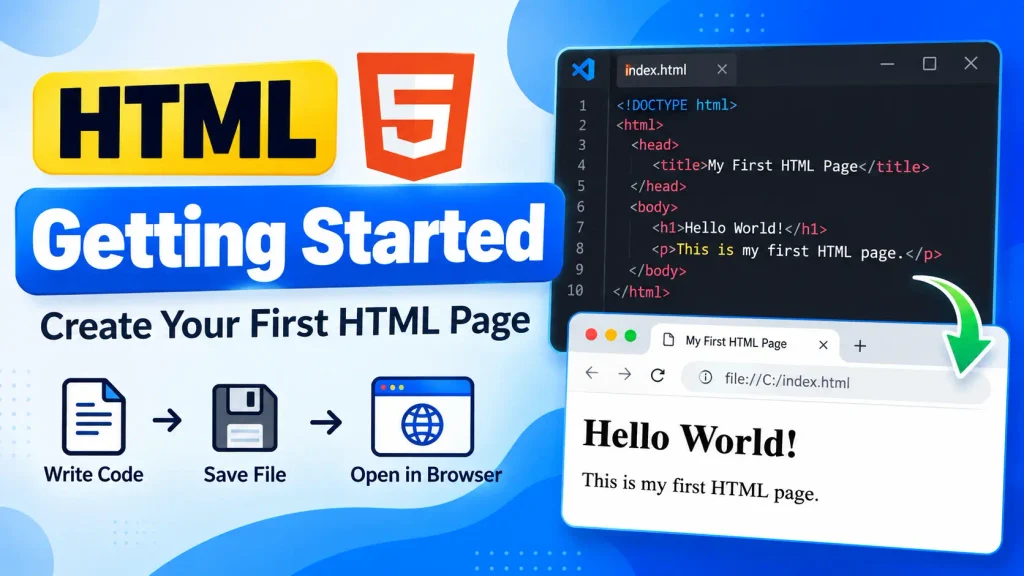
In this tutorial, you will learn how to create your first HTML file, write basic HTML code, save the file, and open it in a web browser.
You do not need any previous programming experience to get started with HTML.
What You Need to Start Learning HTML
To write and run HTML code, you only need two things:
- A text editor
- A web browser
A text editor is used to write HTML code, while a web browser is used to display the result.
You can use simple editors such as Notepad on Windows, or you can use professional code editors such as Visual Studio Code.
For beginners, Visual Studio Code is a popular choice because it provides features such as syntax highlighting, code suggestions, formatting, and extensions.
You can also write HTML using many other editors. HTML itself does not require any special software to run.
Create Your First HTML File
Let’s create a simple HTML page.
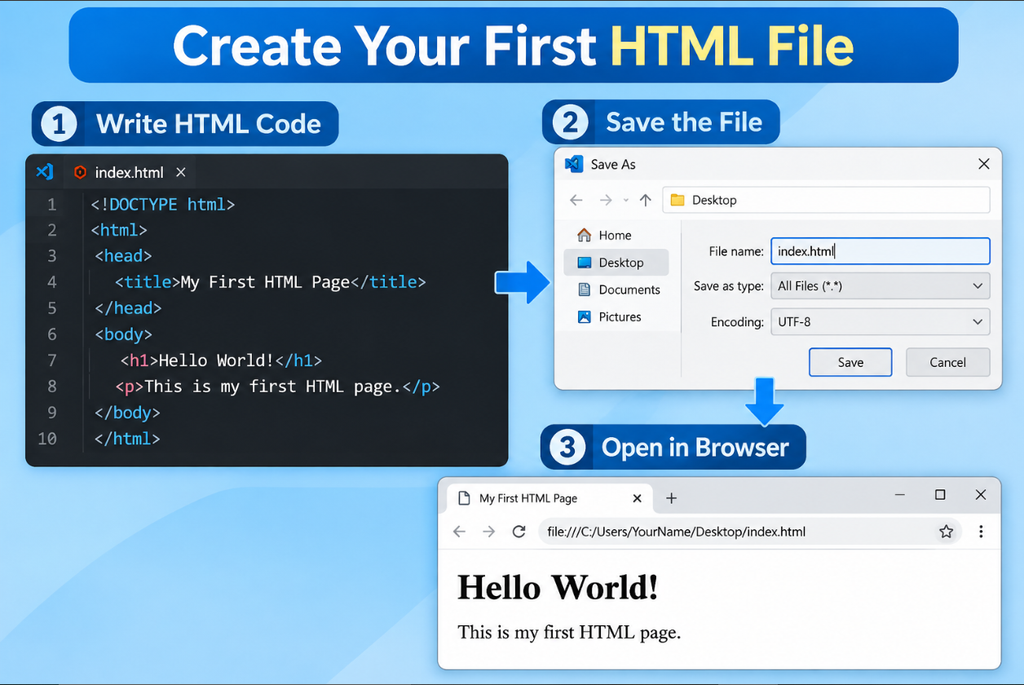
Open your text editor and write the following code:
<!DOCTYPE html>
<html>
<head>
    <title>My First HTML Page</title>
</head>
<body>

    <h1>Hello World!</h1>
    <p>This is my first HTML page.</p>

</body>
</html>
Save the file with the .html extension.
For example:
index.htmlThe .html extension tells your computer and browser that the file contains HTML code.
Open the HTML File in a Browser
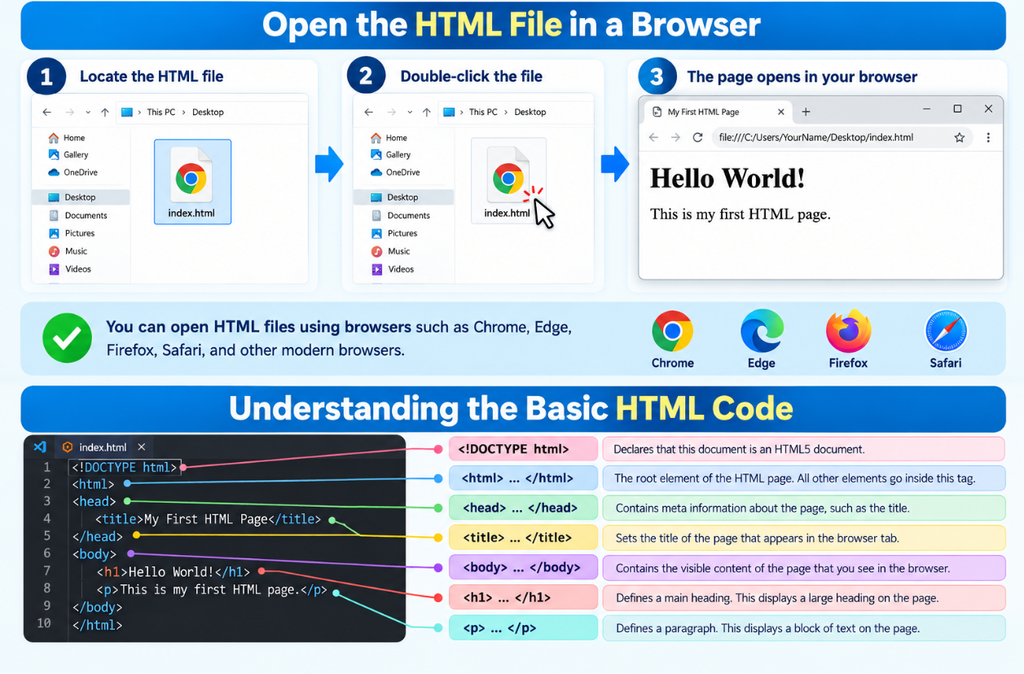
After saving your HTML file, you can open it in a web browser.
- Locate the
index.htmlfile on your computer and double-click it. - Your browser will open the page and display: Hello World!
This is how a basic HTML page works. The browser reads the HTML code and converts it into the web page that you see on your screen.
You can open HTML files using browsers such as Chrome, Edge, Firefox, Safari, and other modern browsers.
Understanding the Basic HTML Code
Let’s look at the important parts of the example.
The first line is:
<!DOCTYPE html>
  <html>
      <head>
          <!--  Head of the section-->
      </head>
      <body>
           <!--  Body of the section -->
     </body>
</html>
This tells the browser that the document uses HTML5.
- The
<html>element contains the entire HTML document. - Inside the
<html>element, there are generally two important sections: - The
<head>section contains information about the document, such as the page title and metadata. - The
<body>section contains the content that appears on the web page.
For example:
<body>
    <h1>Hello World!</h1>
    <p>This is my first HTML page.</p>
</body>
Here, <h1> creates a main heading and <p> creates a paragraph.
The detailed topics such as HTML elements, tags, attributes, headings, and paragraphs will be covered separately in the upcoming HTML lessons.
Your First HTML Page
Here is another simple example:
<!DOCTYPE html>
<html>
<head>
    <title>My Website</title>
</head>
<body>

    <h1>Welcome to My Website</h1>

    <p>This is my first website using HTML.</p>

</body>
</html>
When you open this file in a browser, you will see the heading and paragraph displayed on the page.
You can change the text and experiment with the code.
For example:
<h1>Welcome to Web4Learners</h1>

<p>Learn HTML, CSS, JavaScript and more.</p>
Save the file again and refresh your browser to see the changes.
HTML Files Use the .html Extension
HTML documents normally use the .html file extension.
Examples include:
index.html
about.html
contact.html
services.html
login.html
A website can contain many HTML files. Each file can represent a different page.
For example:
- index.html
- contact.html
- about.html
The index.html file is commonly used as the main or home page of a website.
Create an HTML Folder
When learning HTML, it is useful to keep your files organized.
You can create a folder such as: my-website
Inside it, you can create:
my-website/
│
├── index.html
├── about.html
└── contact.html
Later, when you learn CSS and JavaScript, you can add separate folders for those files.
For example:
my-website/
│
├── index.html
├── about.html
│
├── css/
│   └── style.css
│
└── js/
    └── script.js
This type of organization makes larger websites easier to manage.
HTML Works in a Web Browser
HTML does not need to be compiled like some programming languages.
A web browser reads the HTML document and renders it as a web page.
The basic process is:
HTML File
↓
Web Browser
↓
HTML Parsed
↓
Web Page Displayed
When you change the HTML code, save the file and refresh the browser to see the updated result.
Use Developer Tools
- Modern browsers provide Developer Tools, which are extremely useful when learning HTML.
- You can usually open Developer Tools by right-clicking on a web page and selecting Inspect.
- Developer Tools allow you to inspect the HTML structure of a web page.
For example, you may see:
<h1>Welcome</h1>
<p>This is a paragraph.</p>
You can also temporarily modify HTML elements inside Developer Tools and immediately see how the page changes.
Remember that these changes are temporary. They do not modify the original website files.
HTML, CSS, and JavaScript
HTML is only one part of modern web development.
A typical website uses three major technologies:
| Technology | Main Purpose |
|---|---|
| HTML | Creates the structure |
| CSS | Controls the appearance |
| JavaScript | Adds interactivity |
For example, HTML can create a button:
<button>Click Me</button>CSS can change how the button looks, while JavaScript can make the button perform an action when a user clicks it.
You will learn CSS and JavaScript integration later in the HTML tutorial.
Try Changing the Example
The best way to learn HTML is to practice.
Start with this code:
<!DOCTYPE html>
<html>
<head>
    <title>My Page</title>
</head>
<body>

    <h1>My First Website</h1>
    <p>I am learning HTML.</p>

</body>
</html>
Now try changing:
- The page title
- The heading
- The paragraph
- The text inside the page
Save the file and refresh the browser after every change.
This simple process will help you understand how HTML code controls the structure and content of a web page.
1 thought on “HTML Getting Started”
Comments are closed.