
Every HTML web page follows a basic document structure. This structure tells the web browser how the page should be interpreted and displayed.
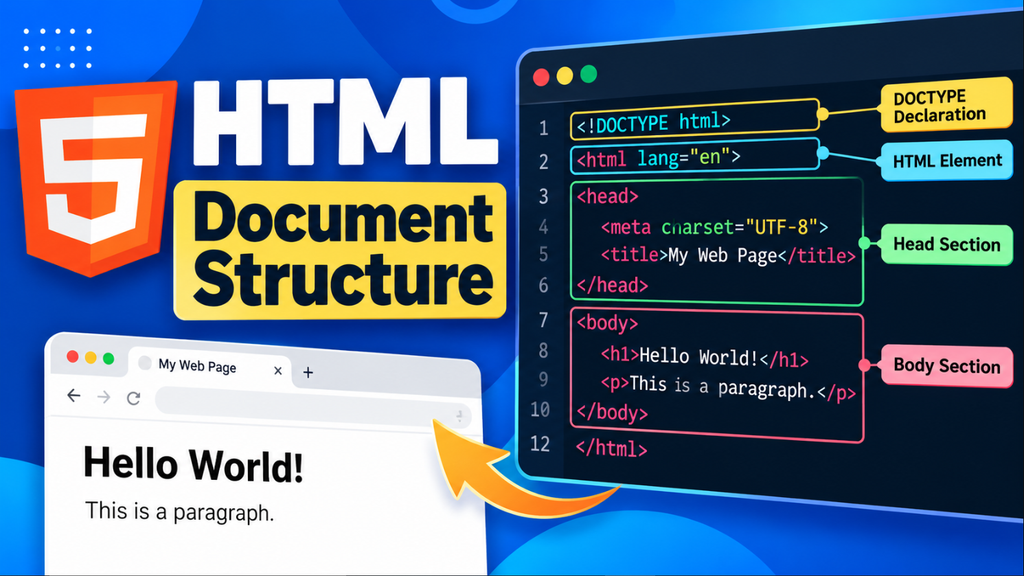
Understanding the HTML document structure is important for beginners because it forms the foundation of every HTML page. Whether you are creating a simple personal page or a large website, the basic HTML structure remains the starting point.
A standard HTML document contains elements such as <!DOCTYPE html>, <html>, <head>, <title>, and <body>.
Basic HTML Document Structure
A basic HTML document looks like this:
<!DOCTYPE html>
<html>
<head>
    <title>My First Web Page</title>
</head>
<body>

    <h1>Welcome to My Website</h1>
    <p>This is my first web page.</p>

</body>
</html>
Each part of this document has a specific purpose.
The browser reads these elements and uses them to understand the structure and content of the web page.
HTML Document Structure Overview
The main parts of a basic HTML document are:
| Part | Purpose |
|---|---|
<!DOCTYPE html> | Defines the document as HTML5 |
<html> | Root element of the document |
<head> | Contains metadata and page information |
<title> | Defines the browser tab title |
<body> | Contains the visible page content |
These elements work together to create a complete HTML document.
The DOCTYPE Declaration
The first line of a modern HTML document is usually:
<!DOCTYPE html>
This is called the DOCTYPE declaration.
- It tells the browser that the document is written using HTML5.
- The DOCTYPE declaration is not an HTML element. It is a declaration that helps the browser render the document using the appropriate standards.
A typical HTML page begins with:<!DOCTYPE html>
It should appear before the <html> element.
The HTML Element
The <html> element is the root element of an HTML document.
All other HTML elements are placed inside the <html> element.
Example:
<!DOCTYPE html>
<html>

</html>
- The complete document is contained between the opening
<html>tag and closing</html>tag. - You can also specify the language of the document using the
langattribute: <html lang=”en”> - Here,
enindicates that the primary language of the page is English.
A complete beginning of an HTML document can therefore look like:
<!DOCTYPE html>
<html lang="en">
The Head Element
The <head> element contains information about the HTML document.
This information is generally not displayed directly as content on the web page.
For example:
<head>
    <title>HTML Tutorial</title>
</head>
The <head> section can contain:
- Page title
- Character encoding
- Viewport settings
- SEO metadata
- CSS references
- JavaScript references
- Other metadata
The <head> section is placed inside the <html> element.
The Title Element
The <title> element defines the title of the HTML document.
For example:<title>HTML Tutorial</title>
The title normally appears in the browser tab.
- It can also be used by search engines when determining how a page may be represented in search results.
- A good title should clearly describe the content of the page.
- For example: <title>HTML Tutorial for Beginners</title>
- is more descriptive than: <title>Page 1</title>
The Body Element
The <body> element contains the content displayed on the web page.
For example:
<body>

    <h1>Welcome to My Website</h1>
    <p>Learn HTML step by step.</p>

</body>
The body can contain many different HTML elements, including:
- Headings
- Paragraphs
- Links
- Images
- Lists
- Tables
- Forms
- Buttons
- Videos
- Sections
- Articles
Most of the content users see in a browser is placed inside the <body> element.
Head and Body Difference
The <head> and <body> elements have different purposes.
<head> | <body> |
|---|---|
| Contains document information | Contains visible page content |
| Contains metadata | Contains headings and paragraphs |
| Contains the page title | Contains images and links |
| Can contain CSS references | Contains forms and buttons |
| Usually not directly visible | Displayed in the browser |
For example:
<html>

<head>
    <title>My Website</title>
</head>

<body>
    <h1>Welcome</h1>
    <p>This is my website.</p>
</body>

</html>
The title belongs in the <head>, while the heading and paragraph belong in the <body>.
Character Encoding
HTML documents commonly specify their character encoding using the <meta> element.
The most common declaration is: <meta charset=”UTF-8″>
UTF-8 supports a very large range of characters and is widely used for modern websites.
A typical <head> section therefore includes:
<head>
    <meta charset="UTF-8">
    <title>My Web Page</title>
</head>
This helps the browser correctly interpret the characters used in the document.
Viewport Meta Tag
- For responsive websites, the viewport meta tag is commonly added inside the
<head>section. <meta name=”viewport” content=”width=device-width, initial-scale=1.0″> - This helps the page display appropriately on different screen sizes, including smartphones, tablets, and desktop computers.
A modern HTML document often begins its <head> section like this:
<head>
    <meta charset="UTF-8">
    <meta name="viewport" content="width=device-width, initial-scale=1.0">
    <title>My Website</title>
</head>
HTML Comments in the Document Structure
Comments can be added to explain different sections of an HTML document.
HTML comments use: <!– This is a comment –>
For example:
<!DOCTYPE html>
<html lang="en">

<head>
    <!-- Page information -->
    <meta charset="UTF-8">
    <title>My Website</title>
</head>

<body>

    <!-- Main page content -->
    <h1>Welcome to My Website</h1>

</body>

</html>
Comments are not displayed as visible content on the web page.
HTML Document Tree Structure
HTML documents can be understood as a tree-like structure.
For example:
html
├── head
│   ├── meta
│   └── title
│
└── body
    ├── h1
    └── p
- The
<html>element is the root. - The
<head>and<body>elements are children of<html>. - The
<title>element is inside<head>, while elements such as<h1>and<p>are inside<body>. - Understanding this hierarchy will become especially useful when you learn CSS and JavaScript.
Complete HTML Document Example
Here is a complete example of a properly structured HTML document:
<!DOCTYPE html>
<html lang="en">

<head>

    <meta charset="UTF-8">

    <meta name="viewport"
          content="width=device-width, initial-scale=1.0">

    <title>My First Web Page</title>

</head>

<body>

    <header>
        <h1>Welcome to My Website</h1>
    </header>

    <main>

        <h2>About HTML</h2>

        <p>
            HTML is the standard markup language used
            to create the structure of web pages.
        </p>

        <p>
            You can use HTML to create headings,
            paragraphs, links, images, lists, and more.
        </p>

    </main>

    <footer>
        <p>Copyright 2026 My Website</p>
    </footer>

</body>

</html>
This example uses semantic elements such as <header>, <main>, and <footer> to organize the page.
Semantic HTML Structure
Modern HTML provides semantic elements that describe the purpose of different sections of a page.
Common semantic elements include:
| Element | Purpose |
|---|---|
<header> | Defines introductory or header content |
<nav> | Defines navigation links |
<main> | Defines the main content |
<section> | Defines a section of content |
<article> | Defines independent content |
<aside> | Defines related or secondary content |
<footer> | Defines footer content |
For example:
<body>

    <header>
        <h1>My Website</h1>
    </header>

    <nav>
        <a href="#">Home</a>
        <a href="#">About</a>
    </nav>

    <main>

        <section>
            <h2>HTML Tutorial</h2>
            <p>Learn HTML from beginner to advanced.</p>
        </section>

    </main>

    <footer>
        <p>My Website</p>
    </footer>

</body>
Semantic HTML makes the structure easier for developers, browsers, search engines, and accessibility tools to understand.
Where CSS Is Added
CSS can be connected to an HTML document using the <link> element inside the <head>.
For example:
<head>

    <meta charset="UTF-8">

    <title>My Website</title>

    <link rel="stylesheet" href="style.css">

</head>
Here, style.css is an external CSS file.
CSS controls the visual appearance of HTML elements.
Where JavaScript Is Added
JavaScript can also be included in an HTML document.
For example: <script src=”script.js”></script>
It is commonly placed near the end of the <body>:
<body>

    <h1>My Website</h1>

    <script src="script.js"></script>

</body>
JavaScript can add interactive behavior to a web page.
HTML Document Structure Best Practices
Follow a consistent structure when creating HTML documents.
- Start your document with: <!DOCTYPE html>
- Use the
<html>element as the root element.
Specify the document language when appropriate: <html lang=”en”>
- Keep metadata inside
<head>. - Place visible content inside
<body>. - Use proper indentation.
- Use semantic HTML elements where they accurately describe the content.
- Use a descriptive
<title>for every page. - Include the viewport meta tag for responsive pages.
Common HTML Structure Mistakes
Beginners may make some common mistakes when creating HTML documents.
| Mistake | Correct Approach |
|---|---|
| Missing DOCTYPE | Add <!DOCTYPE html> |
Missing <html> element | Use <html> as the root |
Putting visible content in <head> | Place page content inside <body> |
| Missing page title | Add a <title> inside <head> |
| Incorrect nesting | Properly nest elements |
| Missing closing tags | Close elements when required |
| Poor indentation | Keep code properly formatted |
A clean document structure makes HTML easier to read, maintain, and debug.
HTML Document Structure Cheat Sheet
The basic structure can be remembered like this:
<!DOCTYPE html>

<html lang="en">

<head>

    <meta charset="UTF-8">

    <meta name="viewport"
          content="width=device-width, initial-scale=1.0">

    <title>Page Title</title>

</head>

<body>

    <h1>Main Heading</h1>

    <p>Page content goes here.</p>

</body>

</html>
Think of the structure as:
DOCTYPE
↓
HTML
├── HEAD
│ ├── META
│ └── TITLE
│
└── BODY
├── HEADER
├── MAIN
└── FOOTER
Frequently Asked Questions
What is the basic structure of an HTML document?
A basic HTML document contains <!DOCTYPE html>, <html>, <head>, <title>, and <body> elements.
What is the purpose of <!DOCTYPE html>?
It tells the browser that the document uses HTML5.
What is the difference between HTML head and body?
The <head> contains metadata and document information, while the <body> contains the content displayed on the web page.
Where should the title be placed in HTML?
The <title> element should be placed inside the <head> element.
Where does the visible content of a web page go?
Visible page content is generally placed inside the <body> element.
Why is lang="en" used in HTML?
The lang attribute identifies the primary language of the document. For example, lang="en" indicates English.
What is the purpose of the viewport meta tag?
It helps browsers display web pages correctly across different screen sizes and is commonly used for responsive web design.
HTML Document Structure Quiz
Test your knowledge of HTML Document Structure
Quiz Completed!
Your Score: 0/5
1 thought on “HTML Document Structure”
Comments are closed.