
Learning JavaScript does not require a complicated setup. You can start writing and running JavaScript with a modern web browser and a code editor. JavaScript is commonly used with HTML and CSS to build interactive websites. HTML provides the structure.CSS controls the appearance.
JavaScript adds logic, behavior, and interaction.
For example, HTML can create a button on a webpage. CSS can make the button look attractive. JavaScript can make the button perform an action when a user clicks it. this is the basic idea behind interactive web development.
In this chapter, you will learn how to set up JavaScript and start writing your first JavaScript program.
You will also learn how to use the <script> tag, write inline JavaScript, use internal JavaScript, connect external JavaScript files, run JavaScript in a browser, and use Browser Developer Tools and the Console.
What Do You Need to Start JavaScript?
You need only a few basic tools.
| Tool | What It Does |
|---|---|
| Web browser | Runs JavaScript code |
| Code editor | Lets you write JavaScript |
| HTML file | Provides a webpage for JavaScript |
| Developer Tools | Helps test and debug JavaScript |
You can use browsers such as Google Chrome, Microsoft Edge, Mozilla Firefox, or Safari. You can use almost any text editor. However, a modern code editor makes programming much easier. Visual Studio Code is a popular choice.
It provides features such as syntax highlighting, autocomplete, code navigation, and extensions. You do not need Node.js for your first browser-based JavaScript programs. You can begin with a simple HTML file.
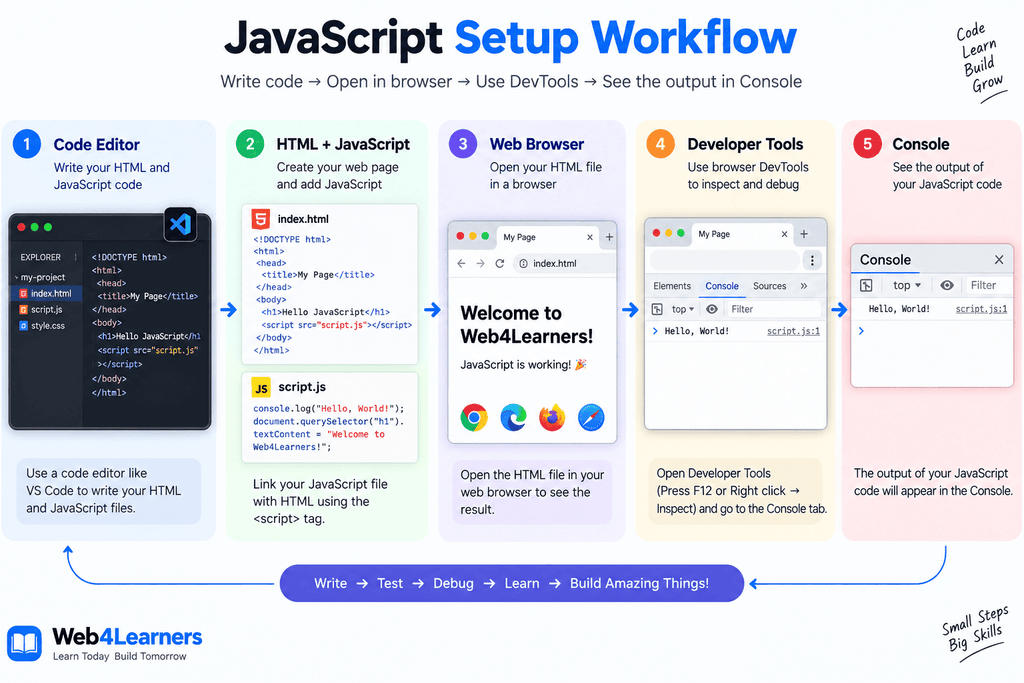
Writing JavaScript in HTML
One of the easiest ways to start learning JavaScript is by writing it inside an HTML file.HTML files normally use the .html extension.
For example:
index.html
You can create this file using Visual Studio Code or another code editor.
Start with a basic HTML document.
The browser reads the HTML document. It creates the webpage structure. When it reaches the <script> element, it recognizes that JavaScript code is present. The JavaScript engine then processes the code.
The console.log() statement sends a message to the browser Console.
HTML and JavaScript Working Together
JavaScript becomes more useful when it interacts with HTML elements.
Consider this example:
The HTML creates a heading. The heading has an id named title.
JavaScript finds the heading using:
document.getElementById("title")
JavaScript then changes its text.
The original heading is:
Hello
After JavaScript runs, it becomes:
Hello JavaScript!
This is a simple example of JavaScript modifying webpage content.
The <script> Tag
The <script> tag is used to include JavaScript in an HTML document.
A simple example is:
<script>
    console.log("Hello JavaScript!");
</script>
The opening tag is:
<script>
The closing tag is:
</script>
JavaScript code can be written between these tags.
For example:
<script>

    const name = "John";

    console.log(name);

</script>
When the browser processes this element, it executes the JavaScript code.
Why Is the <script> Tag Important?
HTML and JavaScript are different technologies. The browser needs to know which part of the HTML document contains executable JavaScript.
The <script> element provides that connection.
For example:
<h1>My Website</h1>

<script>
    console.log("JavaScript is running");
</script>
The <h1> element creates content. The <script> element contains JavaScript. This allows HTML and JavaScript to work together.
Using JavaScript With the <script> Tag
You can use many JavaScript statements inside a script.
For example:
<script>

    let name = "Sarah";
    let age = 25;

    console.log(name);
    console.log(age);

</script>
The browser executes both statements.
The Console displays:
Sarah
25
The src Attribute
The <script> element can also load JavaScript from an external file.
For example:
<script src="script.js"></script>
The src attribute specifies the location of the JavaScript file.
If the file is in the same folder as the HTML document, this is enough:
<script src="script.js"></script>
If the JavaScript file is inside a folder, the path changes.
For example:
project/
│
├── index.html
│
└── js/
    └── script.js
The HTML reference becomes:
<script src="js/script.js"></script>
The correct file path is important.
An incorrect path can prevent the browser from loading the JavaScript file.
The defer Attribute
The defer attribute is commonly used with external JavaScript.
For example:
<script src="script.js" defer></script>
The browser can download the JavaScript file while continuing to parse the HTML document. The deferred script runs after the document has been parsed. This is useful when JavaScript needs to interact with HTML elements.
For example:
The JavaScript can safely work with the parsed document when it executes.
Creating a JavaScript Program With alert()
You can also display a message using alert().
When the page loads, the browser displays an alert.
The message is:
Hello, World!
The alert() function is useful for simple demonstrations.
It is not commonly used for polished application interfaces.
Creating an Interactive JavaScript Program
JavaScript becomes more interesting when users can interact with the webpage.
Here is a simple example:
The webpage contains a heading.
It also contains a button.
JavaScript selects both elements.
It listens for a click.
When the button is clicked, JavaScript changes the heading.
The result is:
JavaScript is working!
This example introduces an important concept.
JavaScript can respond to user actions.
Running JavaScript in a Browser
A browser can execute JavaScript without requiring a separate JavaScript application.
Create an HTML file.
Add JavaScript.
Save the file.
Open it in your browser.
The browser processes the HTML and executes the JavaScript.
For example:
Save the file as:
index.html
Double-click the file.
Your browser should open the webpage.
Opening an HTML File
There are several ways to open an HTML file.
You can double-click the file.
You can right-click the file and choose a browser.
You can drag the file into a browser window.
You can also use a local development server.
For simple JavaScript practice, opening the HTML file directly is usually enough.
Using a Local Development Server
A local development server can be useful when your project becomes more advanced.
It provides a local address such as:
http://localhost:3000
or:
http://localhost:5173
Tools such as Vite are commonly used for modern JavaScript projects.
However, you do not need a development server for basic JavaScript exercises.
Start with simple HTML files.
Learn the fundamentals first.
Then move to modern development tools.
Browser Developer Tools
Browser Developer Tools are built-in tools for web development.
They allow you to inspect webpages.
They are especially useful when learning JavaScript.
Developer Tools can help you:
- Run JavaScript
- View Console messages
- Find errors
- Inspect HTML
- Inspect CSS
- Debug JavaScript
- Monitor network requests
- Inspect browser storage
- Analyze application behavior
Every major modern browser provides Developer Tools.
How to Open Developer Tools
You can open Developer Tools in several ways.
On Windows, a common keyboard shortcut is:
F12
Another common shortcut is:
Ctrl + Shift + I
You can also right-click a webpage.
Select:
Inspect
The Developer Tools panel will appear.
The exact interface can differ between browsers.
Developer Tools Panels
Developer Tools contain several useful panels.
| Panel | Main Purpose |
|---|---|
| Elements | Inspect HTML and CSS |
| Console | Run and debug JavaScript |
| Sources | Inspect and debug source files |
| Network | Monitor network requests |
| Application | Inspect storage and browser data |
| Performance | Analyze webpage performance |
Beginners should become familiar with the Elements and Console panels first.
The Console
The Console is one of the most important tools for JavaScript developers.
You can use it to test JavaScript.
You can also use it to display values and messages.
Open Developer Tools.
Select:
Console
Then type:
console.log("Hello, JavaScript!");
Press Enter.
The Console displays:
Hello, JavaScript!
You have just executed JavaScript directly in the browser.
Using the Console as a JavaScript Playground
The Console can be used to experiment with JavaScript.
Try:
10 + 20
The result is:
30
Try:
"Hello" + " JavaScript"
The result is:
Hello JavaScript
You can also create variables.
let score = 100;
Then type:
score
The Console returns:
100
This makes the Console useful for learning and experimenting.
Using console.log()
console.log() is commonly used to display information in the Console.
For example:
const name = "John";

console.log(name);
The Console displays:
John
You can also display multiple values.
const name = "John";
const age = 25;

console.log(name, age);
The output contains both values.
Why Is console.log() Useful?
console.log() helps developers understand what their code is doing.
Suppose you have:
const price = 500;
const quantity = 3;

const total = price * quantity;

console.log(total);
The Console displays:
1500
You can use this technique to inspect variables and calculations.
It is especially useful when debugging.
Console Errors
The Console can also show errors.
Consider:
console.log(userName);
If userName has not been declared, the browser can show an error.
For example:
ReferenceError: userName is not defined
The error tells you that the browser cannot find the variable.
Error messages are useful.
They often provide the type of error and information about where it occurred.
Common JavaScript Errors
Beginners often encounter several common error types.
| Error | Meaning |
|---|---|
SyntaxError | JavaScript syntax is invalid |
ReferenceError | A variable or identifier cannot be found |
TypeError | An operation is being performed on an unsuitable value |
RangeError | A value is outside an allowed range |
For example:
console.log("Hello"
This code is missing a closing parenthesis.
The browser reports a syntax error.
Reading Console Errors
Do not ignore Console errors.
They can help you find problems quickly.
When you see an error, look for:
- Error type
- Error message
- File name
- Line number
- Relevant code
For example:
ReferenceError: userName is not defined
You know that the problem involves userName.
You can then check where that variable is used.
Inspecting HTML With Developer Tools
The Elements panel allows you to inspect the webpage structure.
Suppose your page contains:
<h1 id="title">Hello JavaScript</h1>
Open Developer Tools.
Select the Elements panel.
You can find the <h1> element.
You can also inspect its attributes and CSS styles.
This becomes very useful when JavaScript interacts with webpage elements.
Changing HTML Through the Console
You can also experiment with HTML through the Console.
Suppose your webpage contains:
<h1 id="title">Hello</h1>
Run:
document.getElementById("title").textContent = "Welcome!";
The heading changes immediately.
The webpage now displays:
Welcome!
This is a simple way to understand how JavaScript can interact with the DOM.
A Simple JavaScript Project Structure
As you continue learning, it is useful to organize your files.
A simple project can look like this:
javascript-project/
│
├── index.html
│
├── css/
│   └── style.css
│
└── js/
    └── script.js
The HTML file contains the page structure.
The CSS file contains the styles.
The JavaScript file contains the logic.
This organization becomes useful as your projects grow.
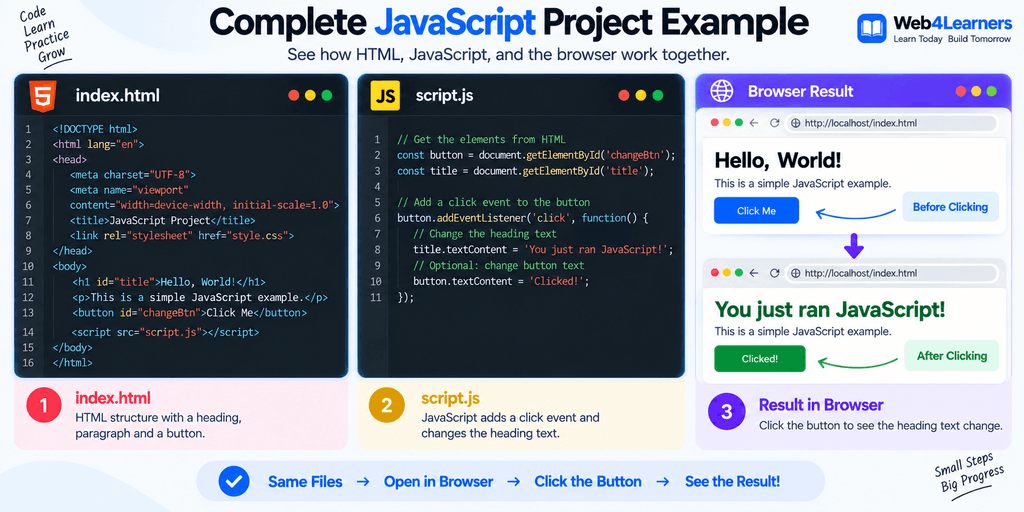
Complete External JavaScript Example
Here is a complete beginner project.
Project structure:
my-project/
│
├── index.html
└── script.js
The index.html file:
- Open
index.htmlin your browser. - The webpage displays a heading and a button.
- Click the button.
- The heading changes.
- The Console also displays:
Button clicked!
This small project combines several concepts.
You are using:
- HTML
- External JavaScript
- DOM selection
- Events
- Functions
console.log()- Browser Developer Tools
Inline vs Internal vs External JavaScript
Understanding the differences is important.
| Feature | Inline JavaScript | Internal JavaScript | External JavaScript |
|---|---|---|---|
| Code location | HTML attribute | <script> inside HTML | Separate .js file |
| Simple to start | Yes | Yes | Yes |
| Good for learning | Yes | Yes | Yes |
| Code reuse | Low | Low | High |
| HTML separation | Low | Medium | High |
| Maintenance | Difficult for large projects | Moderate | Easier |
| Suitable for large applications | No | Usually not ideal | Yes |
| Common modern approach | Limited | Small projects | Widely used |
There is no single method that is appropriate for every situation.
Small examples can use inline or internal JavaScript.
Larger applications usually benefit from external JavaScript files.
Best Practices for Setting Up JavaScript
Keep your JavaScript organized.
Use separate files when your project grows.
Use meaningful file names.
For example:
app.js
main.js
script.js
Use defer when appropriate for external scripts.
Keep HTML focused on structure.
Keep CSS focused on presentation.
Keep JavaScript focused on behavior and application logic.
Use Developer Tools during development.
Use the Console to inspect values and identify errors.
Avoid placing large amounts of JavaScript inside HTML attributes.
Common Beginner Mistakes
Forgetting the <script> Tag
This does not correctly include JavaScript in a normal HTML document:
console.log("Hello");
Use:
<script>
    console.log("Hello");
</script>
Using the Wrong JavaScript File Path
Suppose your files are:
project/
│
├── index.html
└── js/
    └── script.js
The correct path is:
<script src="js/script.js"></script>
Using:
<script src="script.js"></script>
would look for script.js in the wrong location.
Forgetting to Save Files
Save your HTML and JavaScript files before refreshing the browser.
Otherwise, you may be looking at an older version of the code.
Looking for console.log() on the Webpage
This:
console.log("Hello");
does not normally display text on the webpage.
It displays the message in the browser Console.
Ignoring Console Errors
If something does not work, open Developer Tools.
Check the Console.
Look for error messages.
The error often provides a useful clue.
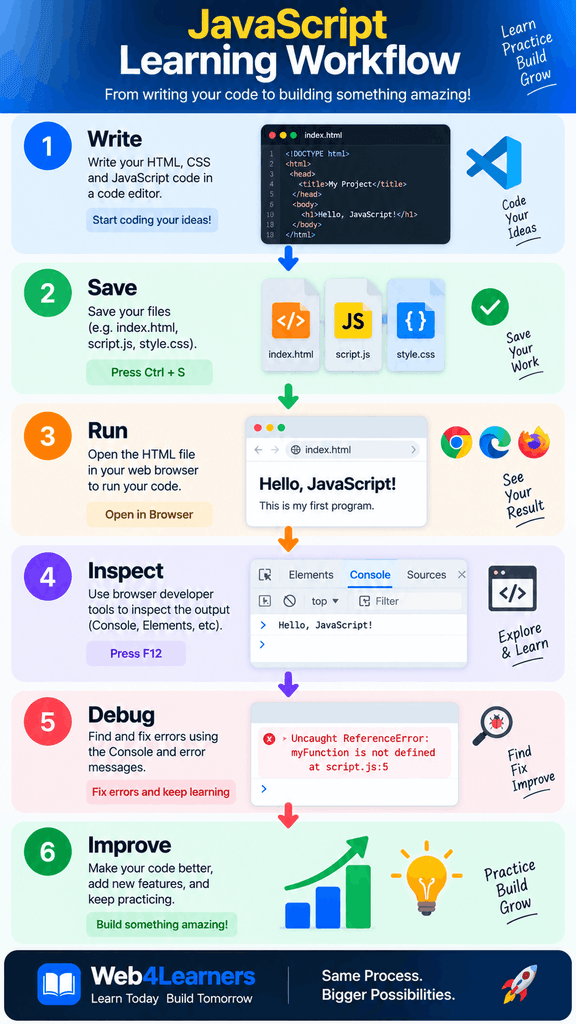
Setting Up JavaScript: Recommended Beginner Workflow
A simple workflow can make learning easier.
Start by creating a project folder.
Create an index.html file.
Write a basic HTML document.
Add a <script> element.
Write a small JavaScript program.
Save the file.
Open it in a browser.
Open Developer Tools.
Open the Console.
Check your output.
Then experiment with JavaScript.
The workflow looks like this:
Create Project
      ↓
Create index.html
      ↓
Add JavaScript
      ↓
Save Files
      ↓
Open Browser
      ↓
Open Developer Tools
      ↓
Open Console
      ↓
Test JavaScript
      ↓
Fix Errors
      ↓
Build More Features
Key Takeaways
JavaScript can be written directly inside HTML.
Frequently Asked Questions
Do I need to install JavaScript?
No.
Modern web browsers already contain JavaScript engines.
You can start learning browser-based JavaScript with a browser and a code editor.
What software do I need to learn JavaScript?
You need a code editor and a modern web browser.
Visual Studio Code is a popular code editor for JavaScript development.
What is the <script> tag in JavaScript?
The <script> element is used to include JavaScript code or reference an external JavaScript file in an HTML document.
What is inline JavaScript?
Inline JavaScript is JavaScript written directly inside an HTML element’s event attribute.
For example:
<button onclick="alert('Hello!')">
    Click Me
</button>
What is internal JavaScript?
Internal JavaScript is JavaScript written inside a <script> element within an HTML document.
What is external JavaScript?
External JavaScript is JavaScript stored in a separate .js file.
The HTML document loads it using the src attribute.
Which JavaScript method displays messages in the Console?
console.log() is commonly used to display messages and values in the browser Console.
How do I open Developer Tools?
You can commonly press F12 or Ctrl + Shift + I on Windows.
You can also right-click a webpage and select Inspect.
Can I run JavaScript directly in the browser?
Yes.
You can run JavaScript directly in the browser Console.
You can also run JavaScript through an HTML document.
Do I need Node.js to learn JavaScript?
No.
Node.js is not required for basic browser-based JavaScript.
You can learn the fundamentals using an HTML file and a browser.
Why is my external JavaScript file not working?
Check the file path.
Check the file name.
Make sure the JavaScript file exists.
Check the browser Console for errors.
Also make sure your HTML references the file correctly.
Should beginners use inline JavaScript?
Inline JavaScript can be useful for very small examples and demonstrations.
For larger projects, separating JavaScript into external files usually makes the code easier to organize and maintain.
What is the difference between JavaScript and HTML?
HTML creates the structure and content of a webpage.
JavaScript adds logic and interactive behavior.
They are commonly used together.
What is the browser Console used for?
The Console can be used to run JavaScript, display messages, inspect values, and identify JavaScript errors.
Is a code editor required for JavaScript?
A code editor is not technically required.
You can write JavaScript directly in the browser Console.
However, a code editor is much more practical for creating and managing JavaScript programs.
1 thought on “Setting Up JavaScript”