
JavaScript objects are one of the most important concepts you need to understand when learning JavaScript. Objects allow you to store related data and functionality together in a structured way. Instead of keeping a person’s name, age, email, and address in separate variables, you can store all of this information inside a single object.
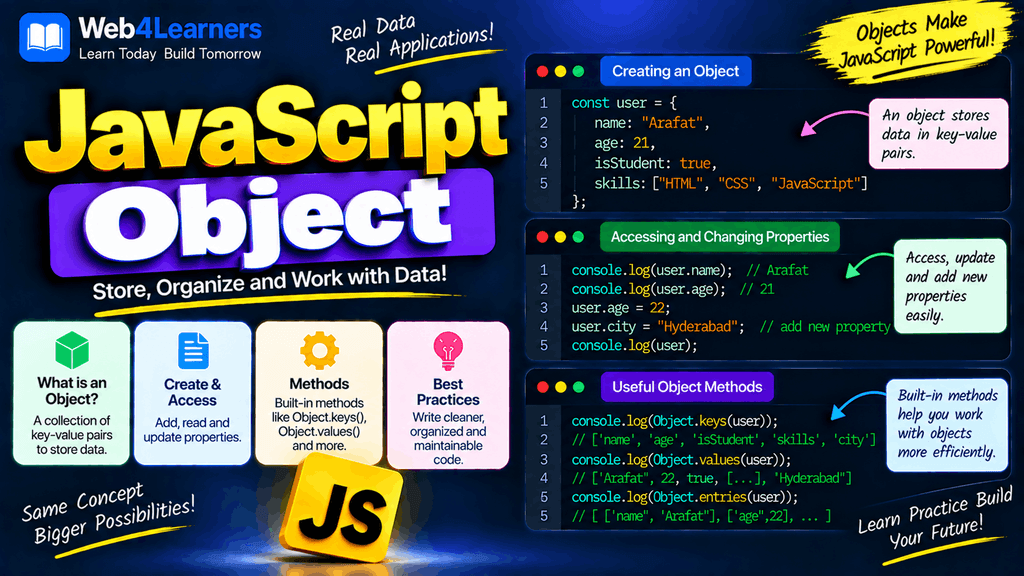
Objects are used throughout JavaScript development. They are found in websites, web applications, APIs, browser features, frameworks, libraries, and almost every modern JavaScript project.
For example, a user can be represented as an object:
const user = {
    name: "Karim",
    age: 25,
    email: "karim@example.com"
};
Here, user is an object containing three properties: name, age, and email.
In this tutorial, you will learn what JavaScript objects are, how to create objects, how to access and modify properties, how to add and delete properties, how to create object methods, how to work with nested objects, how to loop through objects, and how useful built-in object methods work.
What Is an Object in JavaScript?
An object is a collection of key-value pairs.
Each key identifies a piece of data, while its corresponding value contains the actual data.
const person = {
    name: "John",
    age: 30,
    city: "New York"
};
In this example:
| Key | Value |
|---|---|
name | "John" |
age | 30 |
city | "New York" |
The keys are also commonly called properties.
So, you can think of an object as a container that groups related information together.
Image placement suggestion: Add an illustration here showing a JavaScript object as a box containing name, age, and city key-value pairs.
Why Are JavaScript Objects Important?
Objects make it easier to organize and manage related information.
Without an object, you might write:
const userName = "John";
const userAge = 30;
const userCity = "New York";
With an object, you can group the information:
const user = {
    name: "John",
    age: 30,
    city: "New York"
};
This becomes especially useful when applications contain hundreds or thousands of pieces of related data.
Objects are commonly used to represent:
- Users
- Products
- Employees
- Customers
- Orders
- Bank accounts
- Vehicles
- Blog posts
- API responses
- Application settings
- Configuration data
Creating a JavaScript Object
The most common way to create an object is by using object literal syntax.
const person = {
    name: "John",
    age: 30,
    city: "New York"
};
The object begins with { and ends with }.
Each property is written using a key and a value:
key: value
Multiple properties are separated by commas.
Empty JavaScript Object
You can create an empty object without any properties.
const user = {};
You can add properties later.
user.name = "John";
user.age = 30;

console.log(user);
Output:
{
    name: "John",
    age: 30
}
This approach is useful when the object’s data is not available when you initially create it.
Object Properties
Object properties contain information about an object.
const student = {
    name: "Rahul",
    age: 21,
    course: "JavaScript"
};
This object has three properties:
name
age
course
Each property has a corresponding value.
name   → "Rahul"
age    → 21
course → "JavaScript"
Properties can contain many different JavaScript data types.
Objects Can Store Different Data Types
An object can contain strings, numbers, booleans, arrays, other objects, functions, and more.
const user = {
    name: "John",
    age: 30,
    isActive: true,
    skills: ["HTML", "CSS", "JavaScript"],
    address: {
        city: "New York",
        country: "USA"
    }
};
Here, the object contains:
- A string
- A number
- A boolean
- An array
- A nested object
This flexibility is one reason objects are so important in JavaScript.
Accessing Object Properties
There are two primary ways to access object properties:
- Dot notation
- Bracket notation
Dot Notation
Dot notation is the most common way to access an object property.
const person = {
    name: "John",
    age: 30
};

console.log(person.name);
Output:
John
You can access another property in the same way:
console.log(person.age);
Output:
30
The syntax is:
object.property
Bracket Notation
You can also access properties using square brackets.
const person = {
    name: "John",
    age: 30
};

console.log(person["name"]);
console.log(person["age"]);
Output:
John
30
The syntax is:
object["property"]
Dot Notation vs Bracket Notation
| Feature | Dot Notation | Bracket Notation |
|---|---|---|
| Syntax | user.name | user["name"] |
| Easy to read | Yes | Yes |
| Dynamic property names | No | Yes |
| Special property names | Limited | More flexible |
| Common usage | Very common | Useful for dynamic access |
For ordinary property access, dot notation is usually easier to read.
When to Use Bracket Notation
Bracket notation becomes especially useful when the property name is stored in a variable.
const user = {
    name: "John",
    age: 30
};

const property = "name";

console.log(user[property]);
Output:
John
If you used:
console.log(user.property);
JavaScript would look for a property literally named property.
This is why bracket notation is useful when working with dynamic property names.
Adding Properties to an Object
You can add a new property to an existing object.
const user = {
    name: "John"
};

user.age = 30;

console.log(user);
Output:
{
    name: "John",
    age: 30
}
You can also use bracket notation:
user["city"] = "New York";
Now the object contains:
{
    name: "John",
    age: 30,
    city: "New York"
}
Modifying Object Properties
You can change the value of an existing property.
const user = {
    name: "John",
    age: 30
};

user.age = 31;

console.log(user.age);
Output:
31
Objects are mutable, which means their properties can generally be changed after the object has been created.
Deleting Object Properties
You can remove an object property using the delete operator.
const user = {
    name: "John",
    age: 30,
    city: "New York"
};

delete user.age;

console.log(user);
Output:
{
    name: "John",
    city: "New York"
}
The age property has been removed.
Checking Whether a Property Exists
You can use the in operator to check whether a property exists in an object.
const user = {
    name: "John",
    age: 30
};

console.log("name" in user);
console.log("email" in user);
Output:
true
false
You can also use:
Object.hasOwn(user, "name");
This checks whether the object itself has the specified property.
const user = {
    name: "John"
};

console.log(Object.hasOwn(user, "name"));
Output:
true
Object Property Names
Object property names are usually strings or Symbols.
For example:
const user = {
    name: "John",
    age: 30
};
The property names name and age are treated as strings.
You can explicitly write them as strings:
const user = {
    "name": "John",
    "age": 30
};
This works the same way.
Property Names With Spaces
If a property name contains spaces, you need to use quotes.
const user = {
    "first name": "John",
    "last name": "Smith"
};
You cannot access these properties using normal dot notation:
user.first name;
Instead, use bracket notation:
console.log(user["first name"]);
Output:
John
Object Methods
An object can contain functions.
A function stored inside an object is commonly called a method.
const person = {
    name: "John",

    greet: function() {
        console.log("Hello!");
    }
};

person.greet();
Output:
Hello!
You can also use the shorter method syntax:
const person = {
    name: "John",

    greet() {
        console.log("Hello!");
    }
};

person.greet();
This syntax is commonly used in modern JavaScript.
Methods Can Access Object Properties
An object method can use the object’s own properties.
const person = {
    name: "John",

    greet() {
        console.log("Hello " + this.name);
    }
};

person.greet();
Output:
Hello John
Here, this.name refers to the name property of the object.
The this Keyword in Objects
The this keyword is commonly used inside object methods to refer to the object that is calling the method.
const user = {
    name: "John",
    age: 30,

    introduce() {
        console.log(`My name is ${this.name} and I am ${this.age} years old.`);
    }
};

user.introduce();
Output:
My name is John and I am 30 years old.
The behavior of this depends on how a function is called, so it is an important topic to study separately as you progress through JavaScript.
Object Shorthand Properties
Modern JavaScript provides a convenient shorthand for adding variables to objects.
Instead of:
const name = "John";
const age = 30;

const user = {
    name: name,
    age: age
};
You can write:
const name = "John";
const age = 30;

const user = {
    name,
    age
};
JavaScript automatically uses the variable names as property names.
Computed Property Names
JavaScript allows you to create property names dynamically using square brackets.
const property = "name";

const user = {
    [property]: "John"
};

console.log(user.name);
Output:
John
You can also create a property name from an expression.
const prefix = "user";
const property = "name";

const user = {
    [`${prefix}_${property}`]: "John"
};

console.log(user.user_name);
Output:
John
Nested Objects
An object can contain another object.
This is called a nested object.
const user = {
    name: "John",

    address: {
        city: "New York",
        country: "USA"
    }
};
The address property itself contains another object.
You can access nested properties using multiple dots.
console.log(user.address.city);
Output:
New York
You can also use bracket notation:
console.log(user["address"]["city"]);
Objects Containing Arrays
Objects can contain arrays.
const student = {
    name: "John",
    subjects: ["Math", "Science", "JavaScript"]
};

console.log(student.subjects);
You can access individual array elements:
console.log(student.subjects[0]);
Output:
Math
This combination of objects and arrays is extremely common when working with application data and APIs.
Arrays Containing Objects
The opposite is also common. An array can contain multiple objects.
const users = [
    {
        name: "John",
        age: 30
    },
    {
        name: "Sarah",
        age: 25
    },
    {
        name: "David",
        age: 28
    }
];
You can access an individual object:
console.log(users[0]);
You can access a property:
console.log(users[0].name);
Output:
John
This structure is commonly used when receiving lists of records from an API.
Looping Through an Object
You can use a for...in loop to iterate through an object’s enumerable string-keyed properties.
const user = {
    name: "John",
    age: 30,
    city: "New York"
};

for (const key in user) {
    console.log(key);
}
Output:
name
age
city
You can also access the corresponding value:
for (const key in user) {
    console.log(key, user[key]);
}
Output:
name John
age 30
city New York
Object.keys()
Object.keys() returns an array containing an object’s own enumerable property names.
const user = {
    name: "John",
    age: 30,
    city: "New York"
};

console.log(Object.keys(user));
Output:
["name", "age", "city"]
You can combine Object.keys() with other array methods.
Object.keys(user).forEach(key => {
    console.log(key, user[key]);
});
Object.values()
Object.values() returns an array containing an object’s own enumerable property values.
const user = {
    name: "John",
    age: 30,
    city: "New York"
};

console.log(Object.values(user));
Output:
["John", 30, "New York"]
This is useful when you need to work with the values without necessarily needing their property names.
Object.entries()
Object.entries() returns an array containing key-value pairs.
const user = {
    name: "John",
    age: 30
};

console.log(Object.entries(user));
The result is conceptually:
[
    ["name", "John"],
    ["age", 30]
]
This can be particularly useful when looping through an object.
for (const [key, value] of Object.entries(user)) {
    console.log(key, value);
}
Output:
name John
age 30
age 30
Object.assign()
Object.assign() copies properties from one or more source objects into a target object.
const user = {
    name: "John"
};

const details = {
    age: 30,
    city: "New York"
};

Object.assign(user, details);

console.log(user);
Output:
{
    name: "John",
    age: 30,
    city: "New York"
}
A common modern alternative for shallow copying and merging is the spread syntax.
Object Spread Syntax
The spread syntax allows you to copy or combine objects.
const user = {
    name: "John",
    age: 30
};

const copy = {
    ...user
};

console.log(copy);
You can also merge objects:
const user = {
    name: "John"
};

const details = {
    age: 30
};

const profile = {
    ...user,
    ...details
};

console.log(profile);
Output:
{
    name: "John",
    age: 30
}
Updating an Object with Spread Syntax
Spread syntax is also useful when creating an updated copy.
const user = {
    name: "John",
    age: 30
};

const updatedUser = {
    ...user,
    age: 31
};

console.log(updatedUser);
The original object remains unchanged:
console.log(user.age);
Output:
30
The new object contains:
31
This pattern is especially common in modern JavaScript applications and frameworks.
Object Destructuring
Object destructuring allows you to extract properties into variables.
const user = {
    name: "John",
    age: 30
};

const { name, age } = user;

console.log(name);
console.log(age);
Output:
John
30
Without destructuring, you would write:
const name = user.name;
const age = user.age;
Destructuring makes this operation more concise.
Renaming Properties During Destructuring
You can assign a different variable name while destructuring.
const user = {
    name: "John",
    age: 30
};

const { name: userName, age: userAge } = user;

console.log(userName);
console.log(userAge);
Output:
John
30
30
Here, name is the object property and userName is the new variable name.
Default Values in Object Destructuring
You can provide default values during destructuring.
const user = {
    name: "John"
};

const { name, age = 25 } = user;

console.log(name);
console.log(age);
Output:
John
25
The default value is used because the object does not contain an age property.
Optional Chaining with Objects
Optional chaining allows you to safely access nested properties that might not exist.
const user = {
    name: "John"
};

console.log(user.address?.city);
Output:
undefined
Without optional chaining, trying to access a missing nested object can cause an error.
Optional chaining is especially useful when working with API responses where some properties may be missing.
Nullish Coalescing with Objects
You can combine optional chaining with the nullish coalescing operator.
const user = {
    name: "John"
};

const city = user.address?.city ?? "Unknown";

console.log(city);
Output:
Unknown
The ?? operator provides a fallback when the value is null or undefined.
Object.freeze()
Object.freeze() prevents changes to an object at the top level.
const user = {
    name: "John",
    age: 30
};

Object.freeze(user);

user.age = 31;

console.log(user.age);
The property remains unchanged because the object has been frozen.
Object.freeze() is useful when you want to prevent accidental modifications.
However, it is important to understand that freezing an object is shallow. Nested objects require additional handling if you want their properties protected as well.
Object.seal()
Object.seal() prevents properties from being added or deleted, but existing properties can generally still be modified.
const user = {
    name: "John",
    age: 30
};

Object.seal(user);

user.age = 31;

console.log(user.age);
Output:
31
But adding a new property is not allowed:
user.city = "New York";
The exact behavior when attempting these operations can depend on whether the code is running in strict mode, but the key idea is that a sealed object cannot have its property structure changed.
Object.is()
Object.is() compares two values and is similar to strict equality in many situations.
console.log(Object.is(10, 10));
Output:
true
It can behave differently from === for certain special values.
For example:
console.log(Object.is(NaN, NaN));
console.log(NaN === NaN);
Output:
true
false
Object.is() is useful when you need its specific comparison semantics.
Object.fromEntries()
Object.fromEntries() creates an object from key-value pairs.
const entries = [
    ["name", "John"],
    ["age", 30]
];

const user = Object.fromEntries(entries);

console.log(user);
Output:
{
    name: "John",
    age: 30
}
This is especially useful when transforming data using methods such as Object.entries() and array methods.
Object.hasOwn()
Object.hasOwn() checks whether a property belongs directly to an object.
const user = {
    name: "John"
};

console.log(Object.hasOwn(user, "name"));
console.log(Object.hasOwn(user, "age"));
Output:
true
false
This provides a modern and straightforward way to perform an own-property check.
JavaScript Objects Are Reference Values
Objects behave differently from primitive values when they are assigned to variables.
Consider:
const user1 = {
    name: "John"
};

const user2 = user1;

user2.name = "Sarah";

console.log(user1.name);
Output:
Sarah
Why did user1 change?
Because user1 and user2 refer to the same object.
The assignment:
const user2 = user1;
does not create a new copy of the object.
Copying an Object
If you want a shallow copy, you can use the spread operator.
const user1 = {
    name: "John",
    age: 30
};

const user2 = {
    ...user1
};

user2.name = "Sarah";

console.log(user1.name);
console.log(user2.name);
Output:
John
Sarah
The two objects are separate at the top level.
Shallow Copy vs Deep Copy
This distinction becomes important when objects contain nested objects.
A shallow copy copies the top-level properties, but nested objects may still be shared.
For structured data, modern JavaScript also provides:
structuredClone()
Example:
const user1 = {
    name: "John",
    address: {
        city: "New York"
    }
};

const user2 = structuredClone(user1);

user2.address.city = "Chicago";

console.log(user1.address.city);
console.log(user2.address.city);
Output:
New York
Chicago
This creates a deep clone for supported structured-cloneable values.
Objects and JSON
Objects are frequently used when working with JSON.
For example:
const user = {
    name: "John",
    age: 30
};
You can convert the object into a JSON string using:
JSON.stringify(user);
Example:
const user = {
    name: "John",
    age: 30
};

const json = JSON.stringify(user);

console.log(json);
Output:
{"name":"John","age":30}
You can convert JSON back into a JavaScript value using JSON.parse().
const json = '{"name":"John","age":30}';

const user = JSON.parse(json);

console.log(user.name);
Output:
John
This is extremely common when communicating with web APIs.
Object Example with a Product
Objects are commonly used to represent products in applications.
const product = {
    id: 101,
    name: "Laptop",
    price: 75000,
    available: true,
    categories: ["Electronics", "Computers"]
};

console.log(product.name);
console.log(product.price);
console.log(product.available);
Output:
Laptop
75000
true
This type of structure can represent a product displayed on an e-commerce website.
Object Example with a Student
A student can also be represented using an object.
const student = {
    name: "Rahul",
    age: 21,
    course: "Computer Science",
    marks: {
        javascript: 85,
        database: 90,
        mathematics: 88
    }
};

console.log(student.name);
console.log(student.marks.javascript);
Output:
Rahul
85
This demonstrates how nested objects can organize related information.
Object Example with a User
A typical user object might look like this:
const user = {
    id: 101,
    name: "John",
    email: "john@example.com",
    isActive: true,

    address: {
        city: "New York",
        country: "USA"
    },

    skills: [
        "HTML",
        "CSS",
        "JavaScript"
    ]
};

console.log(user.name);
console.log(user.address.city);
console.log(user.skills[2]);
Output:
John
New York
JavaScript
This kind of structure is common in real-world applications.
Common Object Methods
JavaScript provides many useful methods and functions for working with objects.
| Method | Purpose |
|---|---|
Object.keys() | Returns property names |
Object.values() | Returns property values |
Object.entries() | Returns key-value pairs |
Object.assign() | Copies properties |
Object.freeze() | Prevents changes |
Object.seal() | Prevents adding or deleting properties |
Object.is() | Compares two values |
Object.hasOwn() | Checks for an own property |
Object.fromEntries() | Creates an object from entries |
Object.getOwnPropertySymbols() | Gets Symbol properties |
Reflect.ownKeys() | Gets all own property keys |
Common Mistakes When Working with Objects
Using Dot Notation for Dynamic Properties
This does not work as expected:
const property = "name";

console.log(user.property);
Use:
console.log(user[property]);
Accidentally Sharing an Object Reference
Remember that:
const user2 = user1;
does not create a new object.
Both variables refer to the same object.
Use a suitable copying technique when you need a separate object.
Forgetting That Nested Properties May Be Missing
This can cause an error:
console.log(user.address.city);
if user.address does not exist.
Optional chaining can help:
console.log(user.address?.city);
Confusing Object Keys With Values
In:
const user = {
    name: "John"
};
name is the property key, while "John" is the value.
Deleting Properties Unnecessarily
Although delete is available, constantly adding and removing properties can make application data harder to reason about. In many situations, creating a new object with the desired structure is clearer.
Best Practices for JavaScript Objects
When working with objects, keep your data structure clear and consistent.
Use descriptive property names:
const user = {
    firstName: "John",
    lastName: "Smith"
};
Group related information logically:
const user = {
    name: "John",

    address: {
        city: "New York",
        country: "USA"
    }
};
Use methods when behavior naturally belongs to an object:
const account = {
    balance: 1000,

    getBalance() {
        return this.balance;
    }
};
Use destructuring when it improves readability:
const { name, age } = user;
Use optional chaining when nested data may not exist:
user.profile?.email
Use object spread when creating updated or combined objects:
const updatedUser = {
    ...user,
    age: 31
};
JavaScript Object Cheat Sheet
| Task | Example |
|---|---|
| Create object | const user = {}; |
| Create with properties | const user = { name: "John" }; |
| Access property | user.name |
| Bracket access | user["name"] |
| Add property | user.age = 30 |
| Modify property | user.age = 31 |
| Delete property | delete user.age |
| Check property | "name" in user |
| Own property check | Object.hasOwn(user, "name") |
| Get keys | Object.keys(user) |
| Get values | Object.values(user) |
| Get entries | Object.entries(user) |
| Copy object | { ...user } |
| Merge objects | { ...user, ...details } |
| Freeze object | Object.freeze(user) |
| Seal object | Object.seal(user) |
| Convert to JSON | JSON.stringify(user) |
| Convert JSON to object | JSON.parse(json) |
| Destructure | const { name } = user |
| Optional property access | user.address?.city |
Frequently Asked Questions About JavaScript Objects
What is an object in JavaScript?
An object is a collection of key-value pairs used to organize related data and functionality.
const user = {
    name: "John",
    age: 30
};
How do you create an object in JavaScript?
The simplest method is object literal syntax:
const user = {
    name: "John",
    age: 30
};
How do you access an object property?
You can use dot notation:
user.name;
or bracket notation:
user["name"];
Can an object contain an array?
Yes. Objects can contain arrays as property values.
const user = {
    name: "John",
    skills: ["HTML", "CSS", "JavaScript"]
};
Can an object contain another object?
Yes. This is called a nested object.
const user = {
    address: {
        city: "New York"
    }
};
What is an object method?
A function stored as an object property is commonly called a method.
const user = {
    greet() {
        console.log("Hello");
    }
};
What is the difference between an object and an array?
An object stores data using named keys, while an array is designed for ordered collections accessed primarily through numeric indexes.
const user = {
    name: "John"
};

const numbers = [10, 20, 30];
Objects are useful for representing entities and structured records, while arrays are useful for collections of values.
Are JavaScript objects mutable?
Yes. Objects are generally mutable, meaning their properties can be added, changed, or deleted unless restrictions such as Object.freeze() or Object.seal() are applied.
What does this mean inside an object method?
In a normally called object method, this commonly refers to the object through which the method was called.
const user = {
    name: "John",

    greet() {
        console.log(this.name);
    }
};

user.greet();
How can you copy a JavaScript object?
For a shallow copy, you can use the spread operator:
const copy = {
    ...user
};
For supported structured data, structuredClone() can be used when a deep clone is required.
How do you loop through an object?
You can use for...in:
for (const key in user) {
    console.log(key, user[key]);
}
You can also use Object.entries():
for (const [key, value] of Object.entries(user)) {
    console.log(key, value);
}