
Numbers are one of the most important data types in JavaScript because they are used whenever a program needs to perform calculations, compare values, work with prices, count items, calculate percentages, handle measurements, or process numerical information.
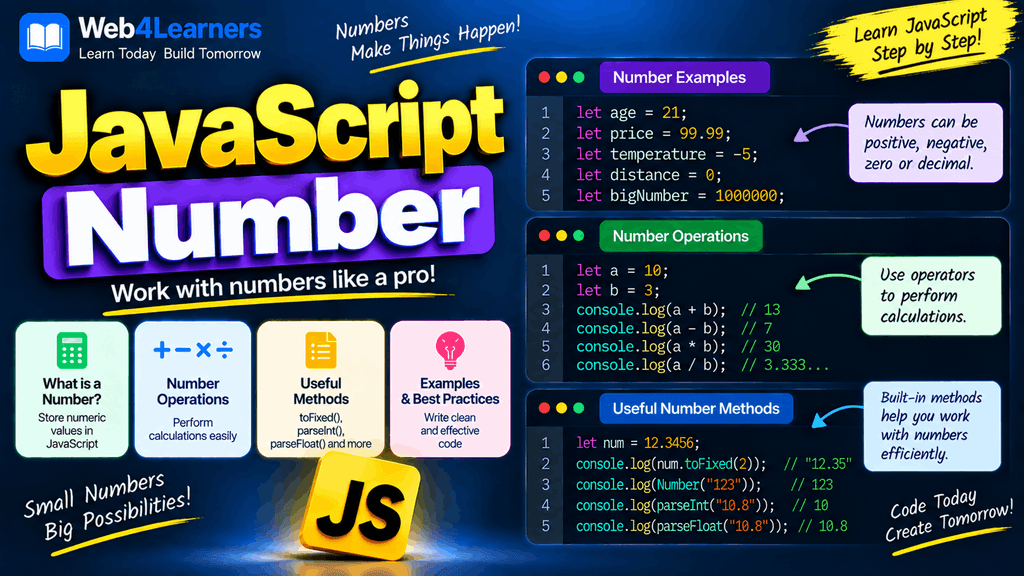
JavaScript provides a powerful Number data type that can represent both whole numbers and decimal values. Unlike some programming languages that use separate data types for integers and floating-point numbers, JavaScript generally uses the same number type for both.
For example, the following values are all JavaScript numbers:
let age = 25;
let price = 499.99;
let temperature = -10;
let score = 95.5;
Understanding how numbers work is essential before moving into topics such as mathematical operators, functions, arrays, objects, form validation, and real-world application development.
In this tutorial, you will learn how to create numbers in JavaScript, perform arithmetic operations, work with decimal values, convert strings into numbers, use useful Number methods and properties, understand special numeric values such as NaN and Infinity, and avoid common mistakes when working with numbers.
What Is a Number in JavaScript?
A number is a JavaScript data type used to represent numerical values.
Numbers can be positive, negative, whole, or decimal values.
let age = 25;
let temperature = -5;
let price = 99.99;
let score = 87.5;
In this example, all four variables contain values of the number data type.
You can check the data type of a value using the typeof operator.
let age = 25;

console.log(typeof age);
Output:
numberJavaScript uses the number type for both integers and floating-point numbers.
let wholeNumber = 100;
let decimalNumber = 25.75;

console.log(typeof wholeNumber);
console.log(typeof decimalNumber);
Output:
number
number
JavaScript Integers and Decimal Numbers
JavaScript does not use separate basic data types for ordinary integers and decimal numbers. Both are represented using the number type.
For example:
let students = 50;
let percentage = 85.5;

console.log(typeof students);
console.log(typeof percentage);
Both values return:
numberWhole numbers do not contain a decimal portion.
let quantity = 10;Decimal numbers contain a fractional part.
let price = 149.99;This makes JavaScript numbers convenient for everyday calculations, although decimal calculations have some important limitations that you should understand later in this tutorial.
Creating Numbers in JavaScript
The simplest way to create a number is to assign a numeric value to a variable.
let age = 25;
let salary = 45000;
let price = 799.50;
Unlike strings, numbers do not need to be enclosed in quotation marks.
let number = 100;If you write:
let number = "100";the value becomes a string rather than a number.
You can verify the difference with typeof.
let a = 100;
let b = "100";

console.log(typeof a);
console.log(typeof b);
Output:
number
string
This distinction is very important when working with calculations and user input.
JavaScript Number Examples
Here are some common examples of numbers:
let age = 21;
let count = 150;
let price = 499.99;
let temperature = -2;
let percentage = 75.5;
let balance = 12500.75;
JavaScript can also represent zero:
let score = 0;Negative numbers are created using the minus sign:
let temperature = -15;Arithmetic Operations With Numbers
JavaScript provides arithmetic operators that allow you to perform mathematical calculations.
The main arithmetic operators are:
| Operator | Name | Example | Result |
|---|---|---|---|
+ | Addition | 10 + 5 | 15 |
- | Subtraction | 10 - 5 | 5 |
* | Multiplication | 10 * 5 | 50 |
/ | Division | 10 / 5 | 2 |
% | Remainder | 10 % 3 | 1 |
** | Exponentiation | 2 ** 3 | 8 |
These operators are used extensively in JavaScript applications.
Addition
The + operator adds two numbers.
let a = 10;
let b = 20;

let result = a + b;

console.log(result);
Output:
30Subtraction
The - operator subtracts one number from another.
let price = 100;
let discount = 20;

let finalPrice = price - discount;

console.log(finalPrice);
Output:
80Multiplication
The * operator multiplies values.
let price = 100;
let quantity = 5;

let total = price * quantity;

console.log(total);
Output:
500Division
The / operator divides one number by another.
let totalMarks = 450;
let subjects = 5;

let average = totalMarks / subjects;

console.log(average);
Output:
90Remainder
The % operator returns the remainder after division.
let result = 10 % 3;

console.log(result);
Output:
1The remainder operator is especially useful when determining whether a number is even or odd.
let number = 10;

console.log(number % 2);
Output:
0A remainder of 0 indicates that the number is evenly divisible by 2.
Exponentiation
The ** operator is used to raise a number to a power.
let result = 2 ** 3;

console.log(result);
Output:
8This means:
2 × 2 × 2 = 8Order of Operations
JavaScript follows mathematical rules when multiple arithmetic operators are used in the same expression.
For example:
let result = 10 + 5 * 2;

console.log(result);
Output:
20Multiplication is performed before addition.
You can use parentheses when you want a particular operation to be performed first.
let result = (10 + 5) * 2;

console.log(result);
Output:
30Using parentheses can make your calculations easier to understand and can prevent unexpected results.
Incrementing and Decrementing Numbers
JavaScript provides the increment operator ++ for increasing a value by one.
let count = 5;

count++;

console.log(count);
Output:
6The decrement operator -- decreases a value by one.
let count = 5;

count--;

console.log(count);
Output:
4These operators are commonly used in loops, counters, games, and other applications where a value changes one step at a time.
Assignment Operators With Numbers
JavaScript also provides shorthand assignment operators.
| Operator | Example | Equivalent |
|---|---|---|
+= | x += 5 | x = x + 5 |
-= | x -= 5 | x = x - 5 |
*= | x *= 5 | x = x * 5 |
/= | x /= 5 | x = x / 5 |
%= | x %= 5 | x = x % 5 |
**= | x **= 5 | x = x ** 5 |
For example:
let score = 100;

score += 20;

console.log(score);
Output:
120The shorthand version is equivalent to:
let score = 100;

score = score + 20;
Comparing Numbers
Numbers can be compared using comparison operators.
let age = 25;

console.log(age > 18);
Output:
trueSome commonly used comparison operators are:
| Operator | Meaning |
|---|---|
> | Greater than |
< | Less than |
>= | Greater than or equal to |
<= | Less than or equal to |
=== | Strictly equal |
!== | Strictly not equal |
For example:
let score = 85;

console.log(score >= 50);
Output:
trueThese comparisons are commonly used with if, else, loops, and validation logic.
Converting a String to a Number
User input from HTML forms is commonly received as a string, even when the user enters a number.
For example:
let age = "25";

console.log(typeof age);
Output:
stringYou can convert the string into a number using Number().
let age = "25";

age = Number(age);

console.log(age);
console.log(typeof age);
Output:
25
number
This conversion is particularly important when performing calculations with form input.
Using parseInt()
The parseInt() function converts a value into an integer when possible.
let value = "25";

let number = parseInt(value);

console.log(number);
Output:
25It can also process a string that begins with an integer.
let value = "25px";

console.log(parseInt(value));
Output:
25When using parseInt() with strings representing numbers in different bases, specifying the radix explicitly is a good practice.
let value = "101";

console.log(parseInt(value, 2));
Output:
5Here, "101" is interpreted as a binary number.
Using parseFloat()
The parseFloat() function is useful when you need to parse a decimal number.
let value = "99.50";

let number = parseFloat(value);

console.log(number);
Output:
99.5For example:
let price = "149.99";

console.log(parseFloat(price));
Output:
149.99Number() vs parseInt() vs parseFloat()
These conversion methods have different behaviors.
| Method | Common use |
|---|---|
Number() | Converts a value into a number |
parseInt() | Extracts an integer |
parseFloat() | Extracts a decimal number |
For example:
console.log(Number("25"));
console.log(parseInt("25.75"));
console.log(parseFloat("25.75"));
Output:
25
25
25.75
Choosing the appropriate conversion method depends on the type of data you are processing and the result your application requires.
Checking Whether a Value Is a Number
JavaScript provides Number.isFinite() and Number.isNaN() for checking numeric values more safely.
For example:
let value = 100;

console.log(Number.isFinite(value));
Output:
trueYou can check whether a value is NaN using:
let value = "Hello";

console.log(Number.isNaN(Number(value)));
Output:
trueWhat Is NaN in JavaScript?
NaN means Not-a-Number.
Despite its name, NaN is technically a special numeric value in JavaScript.
It usually appears when JavaScript attempts to perform a numerical operation that cannot produce a meaningful number.
For example:
let result = Number("Hello");

console.log(result);
Output:
NaNAnother example is:
let result = 10 / "Hello";

console.log(result);
Output:
NaNYou can check for NaN using:
console.log(Number.isNaN(result));Output:
trueWhat Is Infinity in JavaScript?
JavaScript can represent positive and negative infinity.
For example:
let result = 10 / 0;

console.log(result);
Output:
InfinityNegative infinity can occur when a negative number is divided by zero.
let result = -10 / 0;

console.log(result);
Output:
-InfinityYou can check whether a value is finite using:
console.log(Number.isFinite(100));Output:
trueFloating-Point Precision in JavaScript
One of the most important things beginners should understand about JavaScript numbers is that decimal calculations can sometimes produce unexpected results.
Consider this example:
console.log(0.1 + 0.2);You might expect:
0.3However, JavaScript may produce:
0.30000000000000004This happens because computers represent many decimal fractions using binary floating-point arithmetic, and some decimal values cannot be represented exactly in that format.
This does not mean JavaScript’s number system is broken. It is a characteristic of floating-point arithmetic used by many programming languages.
For applications involving money or other calculations where exact decimal precision is essential, developers need to use appropriate techniques rather than relying blindly on ordinary floating-point arithmetic.
For simple display purposes, you can use methods such as toFixed().
let result = 0.1 + 0.2;

console.log(result.toFixed(2));
Output:
0.30Remember that toFixed() returns a string.
let result = 12.3456;

let formatted = result.toFixed(2);

console.log(formatted);
console.log(typeof formatted);
Output:
12.35
string
Rounding Numbers
JavaScript provides several methods for rounding numbers.
Math.round()
Math.round() rounds a number to the nearest integer.
console.log(Math.round(4.6));Output:
5And:
console.log(Math.round(4.4));Output:
4Math.floor()
Math.floor() rounds a number down to the nearest integer.
console.log(Math.floor(4.9));Output:
4Math.ceil()
Math.ceil() rounds a number up to the nearest integer.
console.log(Math.ceil(4.1));Output:
5Math.trunc()
Math.trunc() removes the decimal portion without rounding.
console.log(Math.trunc(4.9));Output:
4These methods are particularly useful when working with calculations, scores, prices, measurements, pagination, games, and user interfaces.
Useful Number Methods
JavaScript provides several methods for working with numbers.
| Method | Purpose |
|---|---|
toString() | Converts a number to a string |
toFixed() | Formats a number with a fixed number of decimal places |
toPrecision() | Formats a number to a specified precision |
toExponential() | Converts a number to exponential notation |
valueOf() | Returns the primitive value |
For example:
let price = 99.99;

console.log(price.toString());
Output:
99.99Useful Number Properties
JavaScript also provides properties through the Number object.
| Property | Description |
|---|---|
Number.MAX_VALUE | Largest positive finite number |
Number.MIN_VALUE | Smallest positive value greater than zero |
Number.MAX_SAFE_INTEGER | Largest integer that can be represented safely |
Number.MIN_SAFE_INTEGER | Smallest safe integer |
Number.POSITIVE_INFINITY | Positive infinity |
Number.NEGATIVE_INFINITY | Negative infinity |
Number.NaN | Not-a-Number |
For example:
console.log(Number.MAX_SAFE_INTEGER);Output:
9007199254740991For ordinary web development, you will rarely need to use the extreme limits directly, but understanding that JavaScript has numeric limits is important when working with very large values.
Safe Integers in JavaScript
JavaScript provides Number.MAX_SAFE_INTEGER and Number.MIN_SAFE_INTEGER to identify the range of integers that can be represented safely using the standard number type.
You can check whether an integer is safe using:
console.log(Number.isSafeInteger(100));Output:
trueFor very large integer values beyond the safe range, JavaScript provides another numeric type called BigInt.
BigInt in JavaScript
BigInt is used when you need to work with integers larger than the safe range of the standard JavaScript number type.
You can create a BigInt by adding n to the end of an integer.
let largeNumber = 9007199254740993n;

console.log(largeNumber);
BigInt is different from the ordinary number type.
let number = 100;
let bigNumber = 100n;

console.log(typeof number);
console.log(typeof bigNumber);
Output:
number
bigint
You should not mix ordinary numbers and BigInts directly in arithmetic operations without explicitly converting them.
Generating Random Numbers
JavaScript provides Math.random() for generating pseudo-random numbers between 0 and 1, where 0 can be included but 1 is not included.
let randomNumber = Math.random();

console.log(randomNumber);
A possible output might be:
0.728391If you need a random integer from 1 to 10, you can use:
let randomNumber = Math.floor(Math.random() * 10) + 1;

console.log(randomNumber);
This type of logic is commonly used in games, random selections, quizzes, and other interactive applications.
Practical JavaScript Number Example
Here is a practical example that calculates the total price of products.
let productPrice = 499.99;
let quantity = 3;

let total = productPrice * quantity;

console.log(`Product Price: ₹${productPrice}`);
console.log(`Quantity: ${quantity}`);
console.log(`Total: ₹${total.toFixed(2)}`);
Output:
Product Price: ₹499.99
Quantity: 3
Total: ₹1499.97
This example demonstrates how JavaScript numbers can be combined with arithmetic operations and template literals to create useful application logic.
Practical Example With Marks
Numbers are also commonly used to calculate averages and percentages.
let math = 85;
let science = 90;
let english = 80;

let total = math + science + english;
let average = total / 3;

console.log(`Total Marks: ${total}`);
console.log(`Average Marks: ${average}`);
Output:
Total Marks: 255
Average Marks: 85
This same type of calculation can be extended to student dashboards, result systems, analytics applications, and other real-world projects.
Numbers From User Input
Consider an HTML input field:
<input type="number" id="age">When you retrieve its value using JavaScript, the returned value is generally a string.
let age = document.getElementById("age").value;

console.log(typeof age);
To perform calculations, you can convert the value:
let age = Number(document.getElementById("age").value);

console.log(age + 1);
This is an important concept when building forms and interactive websites because values entered by users often need to be converted before numerical calculations can be performed.
Common Mistakes When Working With JavaScript Numbers
Treating a Numeric String as a Number
let price = "100";This is a string, even though it contains digits.
Use:
let price = Number("100");when you need an actual number.
Forgetting That User Input Is Usually Text
If you retrieve a value from a form, do not automatically assume it is a number.
let a = "10";
let b = "20";

console.log(a + b);
The result is:
1020Convert the values when numerical calculations are required.
let a = Number("10");
let b = Number("20");

console.log(a + b);
The result is:
30Expecting Exact Decimal Calculations
Do not assume every decimal calculation will produce the exact decimal result you expect.
console.log(0.1 + 0.2);For values that need to be displayed to a specific number of decimal places, appropriate formatting can help.
console.log((0.1 + 0.2).toFixed(2));Using parseInt() When You Need a Decimal
If you need to preserve decimal values, parseInt() is not the right choice.
console.log(parseInt("99.99"));Output:
99Use parseFloat() when you need the decimal portion.
console.log(parseFloat("99.99"));Output:
99.99JavaScript Number Best Practices
Use descriptive variable names when storing numerical values so that the purpose of each value is immediately clear.
let productPrice = 499.99;
let productQuantity = 3;
let totalPrice = productPrice * productQuantity;
Convert user input to numbers before performing mathematical operations.
Use Number.isNaN() when you need to explicitly check for NaN.
Use Number.isFinite() when you need to ensure that a value is a finite number.
Use appropriate rounding and formatting when displaying decimal values.
Be especially careful with floating-point calculations when dealing with financial or precision-sensitive applications.
Consider BigInt when working with integers larger than the safe range of JavaScript’s standard number type.
JavaScript Number Cheat Sheet
| Task | Example |
|---|---|
| Create a number | let age = 25; |
| Create decimal | let price = 99.99; |
| Addition | 10 + 5 |
| Subtraction | 10 - 5 |
| Multiplication | 10 * 5 |
| Division | 10 / 5 |
| Remainder | 10 % 3 |
| Power | 2 ** 3 |
| Convert to number | Number("100") |
| Parse integer | parseInt("100") |
| Parse decimal | parseFloat("99.50") |
| Round | Math.round(4.6) |
| Round down | Math.floor(4.9) |
| Round up | Math.ceil(4.1) |
| Remove decimal | Math.trunc(4.9) |
| Random number | Math.random() |
| Check NaN | Number.isNaN(value) |
| Check finite | Number.isFinite(value) |
| Check safe integer | Number.isSafeInteger(value) |
| Format decimals | number.toFixed(2) |
Frequently Asked Questions About JavaScript Numbers
What is a number in JavaScript?
A number is a JavaScript data type used to represent numerical values, including whole numbers and decimal values.
Does JavaScript have separate integer and float types?
For ordinary numeric values, JavaScript uses the number type for both integers and floating-point numbers.
How do you check whether a value is a number?
You can use the typeof operator for basic type checking.
console.log(typeof 100);This returns:
numberFor more specific validation, methods such as Number.isFinite() can be useful.
How do you convert a string into a number?
You can use Number(), parseInt(), or parseFloat(), depending on the type of conversion you need.
let value = Number("100");What is NaN in JavaScript?
NaN means Not-a-Number and represents an invalid numerical result.
let result = Number("Hello");

console.log(result);
Output:
NaNWhat is the difference between Number and parseInt?
Number() attempts to convert the complete value into a number, while parseInt() parses an integer from the beginning of a string.
Number("25.5");    // 25.5
parseInt("25.5");  // 25
What does Math.random() do?
Math.random() returns a pseudo-random number between 0 and 1, excluding 1.
What is BigInt?
BigInt is a JavaScript numeric type designed for integers larger than the safe range of the standard number type.
Why does 0.1 + 0.2 sometimes produce 0.30000000000000004?
JavaScript uses binary floating-point representation for ordinary numbers, and some decimal fractions cannot be represented exactly in that format. As a result, certain calculations can produce small precision differences.