
HTML elements are the building blocks of HTML web pages. Every HTML document is made up of different elements that tell the browser how to structure and display content.
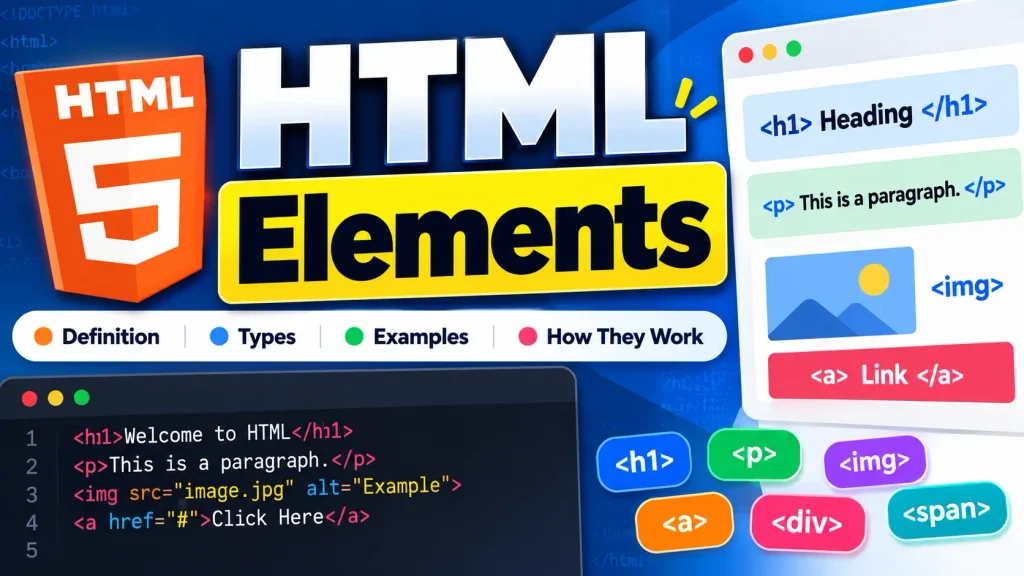
HTML elements can be used to create headings, paragraphs, links, images, lists, tables, forms, buttons, and many other parts of a web page.
Understanding HTML elements is one of the most important steps for beginners learning HTML.
What Is an HTML Element?
An HTML element is a complete piece of HTML code that usually consists of an opening tag, content, and a closing tag.
- For example: <p>This is a paragraph.</p>
- This is a complete HTML paragraph element.
- It contains: Opening Tag → Content → Closing Tag
<p> → Text → </p>
The opening tag tells the browser where the element begins, while the closing tag tells the browser where it ends.
HTML Element Example
Consider the following HTML code: <h1>Welcome to HTML</h1>
Here:
<h1>is the opening tag.Welcome to HTMLis the content.</h1>is the closing tag.- The complete code is an HTML element.
The browser interprets this element as a main heading.
HTML Elements and HTML Tags
- HTML elements and HTML tags are related, but they are not exactly the same thing.
- A tag is the markup written inside angle brackets.
- An element generally includes the opening tag, content, and closing tag.
- For example: <p>Hello World!</p>
Here:
<p> → Opening tag
Hello World! → Content
</p> → Closing tag
Together, they form the paragraph element.
Basic HTML Element Structure
- A typical HTML element follows this structure: <tagname>Content</tagname>
- For example: <h1>My Website</h1>
- Another example: <p>Learn HTML with Web4Learners.</p>
The same basic pattern is used for many HTML elements.
HTML Elements With Attributes
HTML elements can also contain attributes.
Attributes provide additional information about an element.
For example: <a href=”https://example.com”>Visit Website</a>
Here:
<a>is the opening tag.hrefis an attribute."https://example.com"is the attribute value.Visit Websiteis the content.</a>is the closing tag.
Another example:
<p class=”intro”>Welcome to my website.</p>
The class attribute gives additional information about the paragraph element.
Nested HTML Elements
HTML elements can be placed inside other HTML elements. This is called nesting.
For example:
<body>
    <h1>My Website</h1>
    <p>Welcome to my website.</p>
</body>
The <h1> and <p> elements are nested inside the <body> element.
HTML documents commonly contain many levels of nested elements.
Proper HTML Nesting
When nesting HTML elements, elements should be closed in the correct order.
- Correct nesting: <p>This is <strong>important</strong> text.</p>
- The
<strong>element is opened and closed before the<p>element is closed. - Incorrect nesting: <p>This is <strong>important</p></strong>
- The elements overlap incorrectly.
- Proper nesting makes HTML code easier for browsers, developers, and accessibility tools to understand.
Empty HTML Elements
Not every HTML element contains content or has a closing tag.
- Some elements are known as void elements. For example: <br>
- The
<br>element creates a line break. - Another example: <img src=”photo.jpg” alt=”Example photo”>
The<img>element displays an image and does not have a closing</img>tag.
Some common void elements include:
| Element | Purpose |
|---|---|
<br> | Creates a line break |
<hr> | Creates a thematic break |
<img> | Displays an image |
<input> | Creates an input control |
<meta> | Defines metadata |
<link> | Links an external resource |
Common HTML Elements
HTML provides many elements for different purposes.
| Element | Purpose |
|---|---|
<h1> | Main heading |
<h2> | Second-level heading |
<p> | Paragraph |
<a> | Hyperlink |
<img> | Image |
<ul> | Unordered list |
<ol> | Ordered list |
<li> | List item |
<table> | Table |
<form> | Form |
<button> | Button |
<div> | Generic block container |
<span> | Generic inline container |
<header> | Header section |
<nav> | Navigation section |
<main> | Main content |
<footer> | Footer section |
Heading Elements
HTML provides six heading elements:
<h1>Main Heading</h1>
<h2>Section Heading</h2>
<h3>Subsection Heading</h3>
<h4>Heading</h4>
<h5>Heading</h5>
<h6>Heading</h6>
<h1> represents the highest-level heading, while <h6> represents the lowest level.
For example:
<h1>HTML Tutorial</h1>
<h2>HTML Elements</h2>
<h3>Heading Elements</h3>
Headings help organize the content of a web page.
Paragraph Elements
The <p> element is used to create paragraphs.
Example:
<p>
    HTML is the standard markup language used
    to create web pages.
</p>
You can create multiple paragraphs:
<p>HTML defines the structure of a web page.</p>

<p>CSS controls the appearance of the page.</p>
Link Elements
The <a> element creates hyperlinks.
- Example: <a href=”https://example.com”>Visit Website</a>
- The
hrefattribute specifies where the link should take the user. - Links can be used to connect different pages of a website or link to external websites.
Image Elements
The <img> element is used to display images.
- Example: <img src=”image.jpg” alt=”A beautiful landscape”>
- The
srcattribute specifies the image location. - The
altattribute provides alternative text describing the image.
List Elements
HTML provides elements for creating lists.
An unordered list uses <ul>:
<ul>
    <li>HTML</li>
    <li>CSS</li>
    <li>JavaScript</li>
</ul>
An ordered list uses <ol>:
<ol>
    <li>Learn HTML</li>
    <li>Learn CSS</li>
    <li>Learn JavaScript</li>
</ol>
Each item is created using the <li> element.
Div Element
The <div> element is a generic block-level container.
It is commonly used to group related content.
Example:
<div>
    <h2>About HTML</h2>
    <p>HTML creates the structure of web pages.</p>
</div>
The <div> element does not describe what the content means. It is mainly used as a container for grouping and styling content.
Span Element
The <span> element is a generic inline container.
For example: <p>This is <span>important</span> information.</p>
It is often used when you need to style or manipulate a small part of text without creating a new block.
Semantic HTML Elements
HTML also provides semantic elements that describe the purpose of content.
Common semantic elements include:
<header>
<nav>
<main>
<section>
<article>
<aside>
<footer>
For example:
<header>
    <h1>My Website</h1>
</header>

<nav>
    <a href="#">Home</a>
    <a href="#">About</a>
</nav>

<main>
    <section>
        <h2>HTML Tutorial</h2>
        <p>Learn HTML step by step.</p>
    </section>
</main>

<footer>
    <p>Copyright 2026</p>
</footer>
Semantic elements make the structure of a page easier to understand.
Block-Level and Inline Elements
- HTML elements can behave differently in the browser.
- Traditionally, elements are often described as block-level or inline elements.
- Block-level elements generally start on a new line.
Examples include:
<div>
<p>
<h1>
<section>
<header>
<footer>
Inline elements generally remain within the same line.
Examples include:
<a>
<span>
<strong>
<em>
For example:
<p>
    Learn <strong>HTML</strong> and
    <a href="#">web development</a>.
</p>
Here, <strong> and <a> are used within the paragraph without creating separate blocks.
HTML Elements Can Be Nested Multiple Levels
HTML elements can contain other elements, which can contain additional elements.
For example:
<div>
    <section>
        <h2>HTML Elements</h2>

        <p>
            Learn the basics of
            <strong>HTML</strong>.
        </p>
    </section>
</div>
The structure can be represented as:
div
└── section
    ├── h2
    └── p
        └── strong
This hierarchical structure is one of the fundamental concepts of HTML.
HTML Elements and the DOM
When a browser loads an HTML document, it creates a representation of the document called the Document Object Model, or DOM.
For example:
<body>
    <h1>Hello World</h1>
    <p>Welcome!</p>
</body>
The browser represents these elements as a tree-like structure.
Document
└── html
    └── body
        ├── h1
        └── p
JavaScript can interact with these elements through the DOM.
This allows developers to change content, styles, attributes, and other parts of a web page dynamically.
HTML Element Example
Here is a complete example using several HTML elements:
<!DOCTYPE html>
<html lang="en">

<head>
    <meta charset="UTF-8">
    <title>HTML Elements Example</title>
</head>

<body>

    <header>
        <h1>My HTML Page</h1>
    </header>

    <main>

        <h2>About HTML</h2>

        <p>
            HTML is used to create the structure
            of web pages.
        </p>

        <img src="html.jpg" alt="HTML illustration">

        <h2>Web Technologies</h2>

        <ul>
            <li>HTML</li>
            <li>CSS</li>
            <li>JavaScript</li>
        </ul>

        <p>
            <a href="https://example.com">
                Learn More
            </a>
        </p>

    </main>

    <footer>
        <p>My HTML Tutorial</p>
    </footer>

</body>

</html>
This example demonstrates headings, paragraphs, images, links, lists, semantic elements, and nesting.
HTML Elements Best Practices
Use the appropriate HTML element for its intended purpose.
- Use heading elements to organize headings and sections.
- Use
<p>for paragraphs. - Use
<a>for links. - Use
<img>for images and provide meaningfulalttext.
- Use
- Use lists when presenting a group of related items.
- Use semantic elements such as
<header>,<nav>,<main>,<section>, and<footer>when appropriate. - Keep your HTML properly nested and indented.
Avoid using <div> for everything when a suitable semantic element exists.
Common HTML Element Mistakes
Beginners often make mistakes when working with HTML elements.
| Mistake | Example |
|---|---|
| Missing closing tag | <p>Hello |
| Incorrect nesting | <p><strong>Hello</p></strong> |
| Misspelled element | <paragragh> |
| Missing quotes | <a href=https://example.com> |
| Using the wrong element | Using <div> instead of a suitable semantic element |
| Missing image alt text | <img src="photo.jpg"> |
A code editor and browser developer tools can help identify and troubleshoot many HTML problems.
HTML Elements Cheat Sheet
| Element | Description |
|---|---|
<html> | Root of an HTML document |
<head> | Contains document metadata |
<body> | Contains page content |
<h1> to <h6> | Headings |
<p> | Paragraph |
<a> | Link |
<img> | Image |
<ul> | Unordered list |
<ol> | Ordered list |
<li> | List item |
<div> | Generic block container |
<span> | Generic inline container |
<header> | Header content |
<nav> | Navigation |
<main> | Main content |
<section> | Content section |
<article> | Independent content |
<footer> | Footer content |
Frequently Asked Questions
What is an HTML element?
An HTML element is a complete piece of HTML markup that generally consists of an opening tag, content, and a closing tag.
What is the difference between an HTML tag and an element?
A tag is the markup such as <p> or </p>. An element generally includes the opening tag, content, and closing tag.
What are HTML elements used for?
HTML elements are used to define the structure and meaning of content on a web page.
Can HTML elements contain other elements?
Yes. HTML elements can contain other elements. This is called nesting.
What are empty HTML elements?
Empty or void elements do not contain content and do not require closing tags. Examples include <img>, <br>, and <input>.
What are semantic HTML elements?
Semantic elements describe the meaning or purpose of their content. Examples include <header>, <nav>, <main>, <article>, <section>, and <footer>.
What is the most important HTML element?
There is no single most important content element. Different elements serve different purposes. The <html> element is the root of the HTML document, while elements such as headings, paragraphs, links, and images define specific types of content.
7 thoughts on “HTML Elements”
Comments are closed.