
JavaScript strings are one of the most commonly used data types in JavaScript because they allow you to store and work with text. Whenever a web application needs to display a name, message, email address, username, heading, sentence, URL, or any other text-based information, JavaScript strings are usually involved.
Understanding strings is essential for anyone learning JavaScript because string values are used throughout frontend development, form handling, APIs, validation, search functionality, user interfaces, and many other programming tasks. JavaScript provides several built-in features that make it possible to create strings, combine them, search within them, modify their appearance, extract specific characters, and work with text efficiently.
In this tutorial, you will learn what JavaScript strings are, how to create them, the different ways to write string values, how quotation marks work, how template literals make strings easier to manage, and how to use common string properties and methods with practical examples.
What Is a String in JavaScript?
A string is a sequence of characters used to represent text in a JavaScript program. A string can contain letters, numbers, spaces, symbols, punctuation marks, and many other characters.
For example:
let name = "John";
let message = "Welcome to Web4learners!";
let city = "Hyderabad";
In this example, "John", "Welcome to Web4learners!", and "Hyderabad" are all string values.
A string does not have to contain only alphabetic characters. Numbers and special characters can also be part of a string.
let phone = "9876543210";
let pin = "500001";
let productCode = "JS-2026-01";
Although the first two examples contain only numbers, they are strings because they are enclosed within quotation marks.
This distinction is important because JavaScript treats a number and a numeric string differently.
let number = 100;
let text = "100";
Here, 100 is a number, while "100" is a string.
Key characteristics of JavaScript strings
| Feature | Description |
|---|---|
| Data type | string |
| Used for | Storing and working with text |
| Can contain | Letters, numbers, spaces, symbols, and special characters |
| Indexing | Starts from 0 |
| Mutable | Strings are immutable |
| Common methods | length, toUpperCase(), slice(), includes() |
| Common creation methods | Single quotes, double quotes, template literals |
How to Create a String in JavaScript
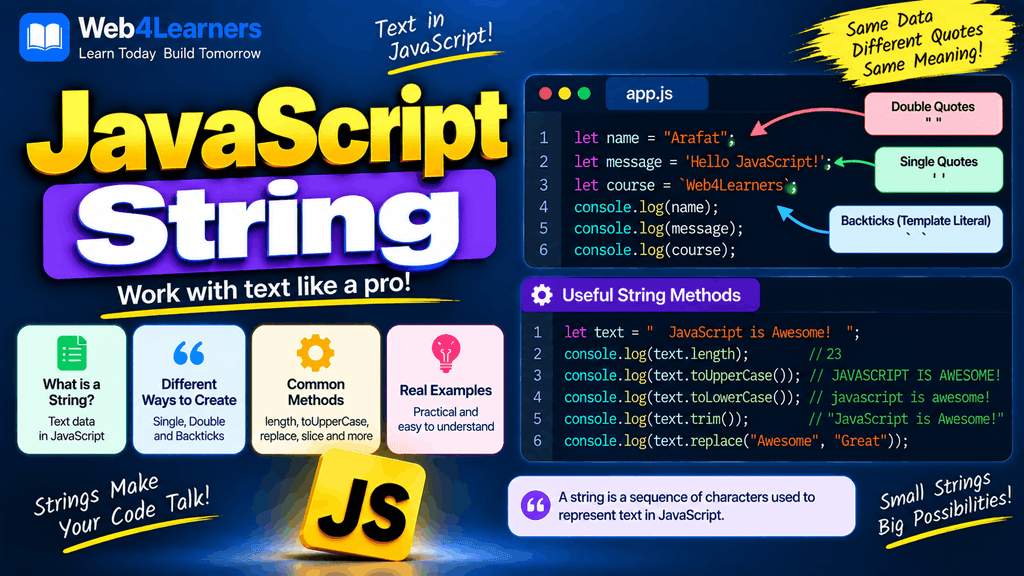
JavaScript provides three common ways to create string values:
- Single quotes
' ' - Double quotes
" " - Backticks
` `
All three approaches can be used to represent text, although template literals provide additional functionality that makes them particularly useful for dynamic content.
Using Single Quotes
You can create a string by placing text between single quotation marks.
let name = 'John';

console.log(name);
Output:
JohnYou can use single quotes when your text does not contain an unescaped apostrophe.
let language = 'JavaScript';
let website = 'Web4learners';
Using Double Quotes
Double quotation marks can also be used to create strings.
let name = "John";

console.log(name);
Output:
JohnBoth single and double quotes create the same JavaScript string data type.
let firstName = 'John';
let lastName = "Smith";

console.log(typeof firstName);
console.log(typeof lastName);
Output:
string
string
The choice between single and double quotes is generally a matter of coding style, although you should try to use a consistent style throughout a project.
Using Template Literals
Template literals use backticks instead of single or double quotation marks.
let message = `Welcome to Web4learners!`;

console.log(message);
Template literals become particularly useful when you need to insert variables or expressions directly into a string.
let name = "John";

let message = `Hello, ${name}!`;

console.log(message);
Output:
Hello, John!The ${...} syntax is called interpolation and allows JavaScript expressions to be inserted into a template literal.
JavaScript String Syntax
A string begins and ends with matching quotation marks.
let message = "Hello World";The opening quote tells JavaScript where the string starts, while the closing quote tells JavaScript where the string ends.
The quotation marks themselves are not normally considered part of the string’s value.
let text = "Hello";

console.log(text);
The value stored in text is:
Hellonot:
"Hello"This becomes important when working with quotation marks inside a string.
Single Quotes vs Double Quotes
Single quotes and double quotes behave similarly when creating ordinary strings.
let message1 = 'Hello World';
let message2 = "Hello World";
Both variables contain the same type of value.
console.log(typeof message1);
console.log(typeof message2);
Output:
string
string
The main difference becomes noticeable when your text itself contains quotation marks.
For example:
let message = "He said 'Hello' to me.";

console.log(message);
Here, single quotes can safely appear inside a string created with double quotes.
You can also do the opposite:
let message = 'He said "Hello" to me.';

console.log(message);
This approach can make your code easier to read because you do not always need to escape the quotation marks.
Strings With Numbers
A JavaScript string can contain numbers, but that does not make the value a number.
let age = "25";
let price = "500";
Both values are strings.
console.log(typeof age);
console.log(typeof price);
Output:
string
string
Compare this with:
let age = 25;
let price = 500;
These values are numbers.
console.log(typeof age);
console.log(typeof price);
Output:
number
number
This difference matters when performing calculations.
let a = "10";
let b = "20";

console.log(a + b);
Output:
1020Because both values are strings, the + operator joins them together instead of performing numerical addition.
If you want to perform mathematical operations, you may need to convert the string into a number.
let a = "10";
let b = "20";

console.log(Number(a) + Number(b));
Output:
30Finding the Length of a String
JavaScript provides the length property to determine how many characters a string contains.
let message = "Hello World";

console.log(message.length);
Output:
11Spaces are also counted as characters.
For example:
let text = "Hello World";The string contains 11 characters because the space between "Hello" and "World" is also counted.
You can also use the length property with variables.
let username = "karim";

console.log(username.length);
Output:
5The length property is frequently useful when creating form validation, password checks, search functionality, and other applications that depend on the number of characters entered by a user.
Accessing Characters in a String
JavaScript strings are indexed, which means every character has a position.
The first character has an index of 0, the second character has an index of 1, and the numbering continues from there.
Consider this string:
let language = "JavaScript";Its characters can be represented like this:
| Character | J | a | v | a | S | c | r | i | p | t |
|---|---|---|---|---|---|---|---|---|---|---|
| Index | 0 | 1 | 2 | 3 | 4 | 5 | 6 | 7 | 8 | 9 |
You can access an individual character using square brackets.
let language = "JavaScript";

console.log(language[0]);
Output:
JYou can access another character by specifying its index.
console.log(language[4]);Output:
SAccessing the last character
Because the length property gives you the total number of characters, you can use length - 1 to access the final character.
let language = "JavaScript";

console.log(language[language.length - 1]);
Output:
tThis technique is useful when you do not know the length of a string in advance.
JavaScript Strings Are Immutable
One of the important characteristics of JavaScript strings is that they are immutable. This means that individual characters in an existing string cannot be changed directly.
For example:
let word = "Hello";

word[0] = "Y";

console.log(word);
The original string remains:
HelloInstead of modifying the existing string, JavaScript creates a new string when you perform operations that appear to change it.
For example:
let word = "Hello";

word = "Yello";

console.log(word);
Here, the variable is assigned a new string value.
Understanding string immutability becomes increasingly important when you start working with more advanced JavaScript applications.
Concatenating Strings
Concatenation means joining two or more strings together.
You can concatenate strings using the + operator.
let firstName = "John";
let lastName = "Smith";

let fullName = firstName + " " + lastName;

console.log(fullName);
Output:
John SmithThe " " part adds a space between the first name and last name.
You can concatenate several strings as well.
let firstName = "John";
let lastName = "Smith";
let city = "Hyderabad";

let message = firstName + " " + lastName + " lives in " + city + ".";

console.log(message);
Output:
John Smith lives in Hyderabad.Although concatenation with + is useful, template literals are often easier to read when you are working with several variables.
String Interpolation With Template Literals
Template literals allow you to insert variables and expressions directly into a string.
let name = "John";
let age = 25;

let message = `My name is ${name} and I am ${age} years old.`;

console.log(message);
Output:
My name is John and I am 25 years old.The ${name} and ${age} portions are replaced with their corresponding values.
You can also place expressions inside ${...}.
let price = 100;
let quantity = 3;

let message = `Total price: ${price * quantity}`;

console.log(message);
Output:
Total price: 300This is one of the most useful features of template literals when creating dynamic content.
Multi-Line Strings
Template literals also make it easy to create strings that span multiple lines.
let message = `Welcome to Web4learners!
Learn HTML, CSS, JavaScript, and React.
Build real-world web projects.`;

console.log(message);
The output preserves the line breaks.
Welcome to Web4learners!
Learn HTML, CSS, JavaScript, and React.
Build real-world web projects.
With traditional quoted strings, creating multi-line text requires additional syntax, while template literals provide a much cleaner approach.
Escape Characters in JavaScript Strings
Sometimes you need to include special characters inside a string. JavaScript provides escape sequences for these situations.
For example, if you want to include a quotation mark inside a string that uses the same quotation mark, you can use a backslash.
let message = "He said \"Hello\" to me.";

console.log(message);
Output:
He said "Hello" to me.Some commonly used escape sequences are:
| Escape sequence | Meaning |
|---|---|
\' | Single quote |
\" | Double quote |
\\ | Backslash |
\n | New line |
\t | Tab |
For example:
let message = "Hello\nWelcome to Web4learners";

console.log(message);
Output:
Hello
Welcome to Web4learners
Converting Values to Strings
JavaScript provides several ways to convert other values into strings.
One common approach is the String() function.
let number = 100;

let text = String(number);

console.log(text);
console.log(typeof text);
Output:
100
string
Another approach is using the .toString() method.
let number = 100;

let text = number.toString();

console.log(text);
Output:
100String conversion is especially useful when working with user input, API responses, IDs, URLs, and other data where text representation is required.
Converting Strings to Numbers
Sometimes you receive a number as a string and need to convert it into a numeric value.
For example:
let price = "500";

let number = Number(price);

console.log(number);
console.log(typeof number);
Output:
500
number
You can also use methods such as parseInt() and parseFloat() depending on the type of conversion you need.
let quantity = "25";

console.log(parseInt(quantity));
Output:
25For decimal values:
let price = "99.50";

console.log(parseFloat(price));
Output:
99.5Common JavaScript String Methods
JavaScript provides many built-in methods for working with strings. These methods allow you to search, extract, transform, and manipulate text.
Some commonly used string methods include:
| Method | Purpose |
|---|---|
toUpperCase() | Converts text to uppercase |
toLowerCase() | Converts text to lowercase |
trim() | Removes whitespace from both ends |
includes() | Checks whether text exists |
startsWith() | Checks how a string begins |
endsWith() | Checks how a string ends |
indexOf() | Finds the position of text |
slice() | Extracts part of a string |
substring() | Extracts characters from a string |
replace() | Replaces matching text |
replaceAll() | Replaces all matching occurrences |
split() | Converts a string into an array |
concat() | Joins strings |
charAt() | Returns a character at an index |
Converting a String to Uppercase
The toUpperCase() method converts all alphabetic characters to uppercase.
let message = "hello world";

console.log(message.toUpperCase());
Output:
HELLO WORLDConverting a String to Lowercase
The toLowerCase() method converts alphabetic characters to lowercase.
let message = "HELLO WORLD";

console.log(message.toLowerCase());
Output:
hello worldThese methods are particularly useful when comparing user input without making the comparison dependent on capitalization.
Removing Extra Whitespace
The trim() method removes whitespace from the beginning and end of a string.
let username = "   John   ";

console.log(username.trim());
Output:
JohnThis can be useful when processing information entered into forms because users may accidentally enter spaces before or after their input.
Checking Whether a String Contains Text
The includes() method checks whether a particular sequence of characters exists inside a string.
let message = "Welcome to Web4learners";

console.log(message.includes("Web4learners"));
Output:
trueIf the specified text does not exist, the result is false.
console.log(message.includes("Python"));Output:
falseChecking the Beginning of a String
The startsWith() method checks whether a string begins with specific text.
let url = "https://web4learners.com";

console.log(url.startsWith("https"));
Output:
trueChecking the End of a String
The endsWith() method checks whether a string ends with specific text.
let fileName = "script.js";

console.log(fileName.endsWith(".js"));
Output:
trueThis can be useful when checking file extensions.
Finding a String’s Position
The indexOf() method returns the index of the first occurrence of a specified string.
let message = "Learn JavaScript";

console.log(message.indexOf("JavaScript"));
Output:
6Remember that JavaScript indexes begin at 0, so the first character is position 0.
If the specified text cannot be found, indexOf() returns -1.
console.log(message.indexOf("Python"));Output:
-1Extracting Part of a String
The slice() method can be used to extract a portion of a string.
let language = "JavaScript";

let result = language.slice(0, 4);

console.log(result);
Output:
JavaThe first argument specifies the starting position, while the second argument specifies where extraction stops.
The ending index is not included.
let language = "JavaScript";

console.log(language.slice(4, 10));
Output:
ScriptReplacing Text in a String
The replace() method can replace matching text with another value.
let message = "I like Java";

let updatedMessage = message.replace("Java", "JavaScript");

console.log(updatedMessage);
Output:
I like JavaScriptIt is important to understand that string methods generally return a new string rather than modifying the original string.
Splitting a String
The split() method divides a string into an array.
For example:
let fruits = "Apple,Banana,Orange";

let result = fruits.split(",");

console.log(result);
Output:
["Apple", "Banana", "Orange"]This method becomes particularly useful when working with comma-separated values, user input, text processing, and data received from APIs.
Comparing Strings
You can compare strings using comparison operators.
let username = "John";

console.log(username === "John");
Output:
trueString comparisons are case-sensitive.
console.log("hello" === "Hello");Output:
falseThis happens because lowercase h and uppercase H are different characters.
JavaScript Strings Are Case-Sensitive
JavaScript treats uppercase and lowercase characters as different.
let name1 = "John";
let name2 = "john";

console.log(name1 === name2);
Output:
falseThis behavior is important when working with usernames, passwords, search terms, commands, and other user-provided text.
If you want to perform a case-insensitive comparison, you can normalize both strings.
let name1 = "John";
let name2 = "john";

console.log(name1.toLowerCase() === name2.toLowerCase());
Output:
truePractical JavaScript String Example
The following example combines several string concepts into a small practical program.
let firstName = "John";
let lastName = "Smith";

let fullName = `${firstName} ${lastName}`;

console.log("Full Name:", fullName);
console.log("Number of Characters:", fullName.length);
console.log("Uppercase:", fullName.toUpperCase());
console.log("Lowercase:", fullName.toLowerCase());
console.log("Contains Smith:", fullName.includes("Smith"));
Output:
Full Name: John Smith
Number of Characters: 10
Uppercase: JOHN SMITH
Lowercase: john smith
Contains Smith: true
This example demonstrates how strings can be combined with properties and methods to process information in a practical JavaScript application.
JavaScript String Example for Form Input
Strings are frequently used when processing information entered by users.
let username = "  John123  ";

username = username.trim();

if (username.length >= 5) {
    console.log(`Welcome, ${username}!`);
} else {
    console.log("Username must contain at least 5 characters.");
}
In this example, trim() removes unnecessary spaces and length checks the number of characters before displaying the result.
This type of logic can be used as part of larger form validation systems.
Common Mistakes When Working With Strings
Beginners often encounter a few common problems when working with JavaScript strings.
Confusing Numbers With Numeric Strings
let value = "100";This is a string, not a number.
If you need to perform calculations, convert it appropriately.
let value = Number("100");Forgetting That Indexing Starts at Zero
let word = "JavaScript";

console.log(word[0]);
The result is J, not a, because the first character is at index 0.
Expecting String Methods to Change the Original String
let message = "hello";

message.toUpperCase();

console.log(message);
The result is still:
helloYou need to assign the returned value if you want to store the transformed string.
message = message.toUpperCase();

console.log(message);
Mixing Quote Types Incorrectly
Incorrect quotation usage can cause a syntax error.
let message = "Hello;The string must have matching opening and closing quotation marks.
let message = "Hello";Best Practices for JavaScript Strings
When working with strings in real-world JavaScript projects, a few practices can make your code easier to read and maintain.
Use a consistent quotation style throughout your project unless there is a practical reason to use another style.
Use template literals when you need to combine multiple variables or expressions with text.
Use meaningful variable names that clearly describe the text being stored.
let userName = "John";
let welcomeMessage = "Welcome to our website!";
Use appropriate string methods instead of manually performing complex text operations.
When processing user input, consider whitespace, capitalization, empty values, and unexpected characters.
JavaScript String Cheat Sheet
| Task | Example |
|---|---|
| Create string | let text = "Hello"; |
| Get length | text.length |
| First character | text[0] |
| Last character | text[text.length - 1] |
| Uppercase | text.toUpperCase() |
| Lowercase | text.toLowerCase() |
| Remove surrounding spaces | text.trim() |
| Search for text | text.includes("Hello") |
| Find position | text.indexOf("Hello") |
| Extract text | text.slice(0, 5) |
| Replace text | text.replace("Hello", "Hi") |
| Split text | text.split(" ") |
| Create dynamic text | `Hello ${name}` |
| Convert to string | String(value) |
| Convert to number | Number(value) |
Frequently Asked Questions About JavaScript Strings
What is a string in JavaScript?
A string is a data type used to represent text in JavaScript. It can contain letters, numbers, spaces, symbols, and special characters.
How do you create a string in JavaScript?
You can create a string using single quotes, double quotes, or backticks.
let a = 'Hello';
let b = "Hello";
let c = `Hello`;
What is the difference between a string and a number?
A string represents text, while a number represents a numeric value.
let a = "100"; // String
let b = 100;   // Number
How do you find the length of a JavaScript string?
Use the length property.
let text = "Hello";

console.log(text.length);
Are JavaScript strings mutable?
No. JavaScript strings are immutable, which means individual characters of an existing string cannot be changed directly.
What are template literals in JavaScript?
Template literals are strings created using backticks. They support variable interpolation, expressions, and multi-line strings.
let name = "John";

console.log(`Hello, ${name}!`);
How do you convert a number into a string?
You can use the String() function or the toString() method.
let number = 100;

let text = String(number);
How do you check whether a string contains specific text?
Use the includes() method.
let text = "Learn JavaScript";

console.log(text.includes("JavaScript"));
Why does "10" + "20" produce "1020"?
Both values are strings, so the + operator concatenates them instead of adding them mathematically.
console.log("10" + "20");Output:
1020